

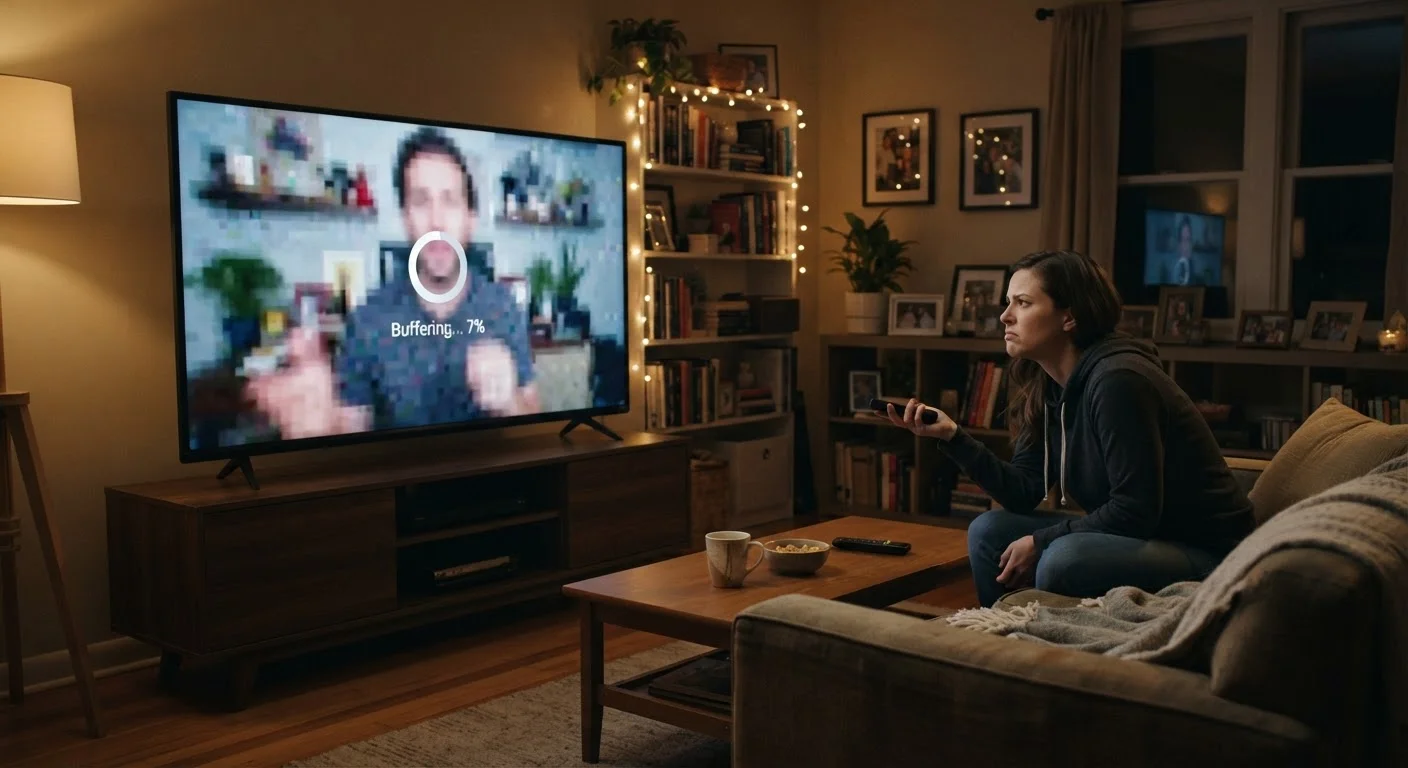
The Real Reason Your Stream Looks Bad
When streaming video looks soft, pixelated, or keeps stopping to load, most people blame the TV. In reality, the television itself is almost never the culprit. Streaming quality is determined by a chain of factors — your internet connection, your home network hardware, app settings, and the device running the app — and a weak link anywhere in that chain shows up on screen.
Understanding where the problem actually originates is the fastest way to fix it. The mistakes below are the most common reasons American households experience poor streaming, and each one has a straightforward remedy. For context on how resolution labels like 4K and HD relate to what you're seeing, see our TV resolution explainer.
Relying on a router that is several years old or placed far from the TV.
Why it happens: Routers are often set up once and forgotten. Older hardware supports slower wireless standards and weaker signals that cannot sustain the bandwidth 4K streaming requires.
Streaming over Wi-Fi from a distant room with walls or appliances blocking the signal path.
Why it happens: Wi-Fi signals weaken with distance and are disrupted by concrete walls, microwaves, and neighboring networks competing on the same frequency channel.
Not checking or adjusting the video quality settings inside the streaming app.
Why it happens: Apps ship with "Auto" quality enabled by default, a setting designed to prevent buffering by reducing resolution during slowdowns. Users rarely revisit it after initial setup.
Running too many devices on the home network simultaneously during a streaming session.
Why it happens: Every device on the network — phones, tablets, game consoles, smart home gadgets — competes for available bandwidth. Households underestimate how much background activity (app updates, cloud backups, video calls) consumes during the day.
Subscribing to an internet plan with insufficient speed for the household's actual usage.
Why it happens: Speed requirements advertised by streaming services describe a single stream. Households with multiple simultaneous streams, plus other connected devices, need substantially more bandwidth than entry-level plans provide.
Using an outdated or underpowered streaming device that cannot decode high-resolution video efficiently.
Why it happens: Older streaming sticks or smart TV built-in apps from several generations ago may not support modern video codecs (the software that compresses and decompresses video), causing choppy playback even with a fast connection.
Network and Settings: The Two Levers You Control
Most streaming problems fall into two categories: network delivery and app configuration. Network issues cause buffering and stuttering; misconfigured settings cause persistent low resolution even when your connection is healthy.
25 Mbps
Typical minimum speed for one 4K stream
Netflix's own help documentation lists approximately 15–25 Mbps as the recommended speed for Ultra HD quality on a single device.
~30%
Households with routers over 5 years old
Industry surveys have consistently found a significant share of US households continue using routers well past the point where hardware limitations affect wireless performance.
On the network side, the single most impactful change many households can make is switching from Wi-Fi to a wired Ethernet connection for the TV or streaming device. Wi-Fi vs. wired streaming covers this trade-off in detail, but the short version is that Ethernet eliminates the interference and signal-drop problems that degrade wireless connections in larger homes or apartments with many neighboring networks.
On the settings side, open the streaming app itself and navigate to playback or video quality settings. Many apps — including popular ones — default to "Auto" quality, which can drop to lower resolutions during any momentary network dip and stay there longer than necessary. Setting a minimum quality floor, where the app allows it, prevents this behavior.
Data Caps Can Throttle Your Quality
Many US internet plans include a monthly data allowance, and some providers reduce speeds after you exceed it. A single 4K movie can consume 15–20 GB of data. If streaming quality degrades noticeably toward the end of your billing cycle, log into your provider's account portal to check your data usage. Exceeding your cap — not a network hardware problem — may be the actual cause.
If you've addressed both network and settings and the problem persists, consult your internet service provider to confirm the speeds actually reaching your modem match what your plan advertises. A technician visit is sometimes needed if the issue is in the line itself rather than your in-home equipment. Also worth noting: some buffering patterns are caused by the streaming service's own servers during peak hours — that's outside your control, and the only fix is waiting it out.
For a deeper look at causes specific to buffering, our related piece on why streaming video keeps buffering walks through additional scenarios.


