

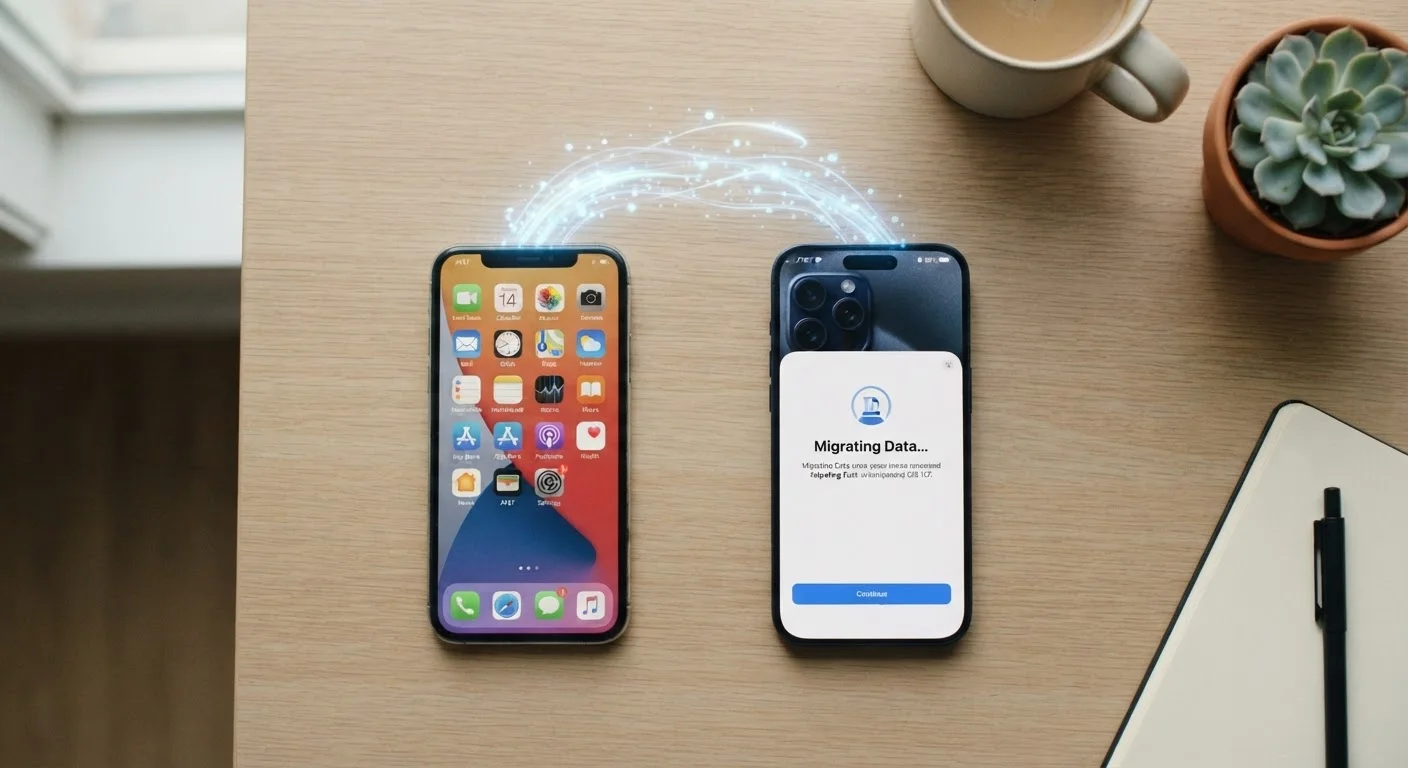
What You Need Before You Start
A smooth phone transfer comes down to preparation. The biggest cause of lost data isn't a technical failure — it's starting the process on the new device before the old one is properly backed up. Give yourself 20–60 minutes in a location with reliable Wi-Fi, and gather everything listed below before powering on the new phone.
What you will need
Google One or built-in Google Backup
Creates a complete backup of your Android phone's contacts, app data, call history, and settings to Google's servers.
iCloud Backup
Backs up your iPhone's photos, messages, app data, and settings wirelessly to Apple's cloud storage.
Move to iOS (Android app)
Apple's official app for migrating content from an Android device to a new iPhone during initial setup.
Google Drive / Google Photos
Used to transfer photos and files when moving from an iPhone to an Android device.
Transfer cable (USB-C to USB-C or Lightning adapter)
Enables a direct wired connection between phones for faster local data transfer on supported devices.
If you're unsure which platform you're moving between, our comparison of how Android and iOS differ can help you understand what to expect from each ecosystem before you commit.
How the Transfer Works: Step-by-Step
Follow these steps in order. Skipping the backup step or starting setup on the new phone prematurely are the two most common mistakes that lead to data loss.
Back up your old phone completely
Before touching your new phone, make sure everything on the old one is safely saved. On Android, go to Settings > Google > Backup and tap Back up now. On iPhone, go to Settings > [Your Name] > iCloud > iCloud Backup and tap Back Up Now. Wait for the backup to complete fully — don't interrupt it.
Choose your transfer method
If you're staying within the same platform (Android to Android, or iPhone to iPhone), use the built-in migration wizard that launches when you first power on the new device. If you're switching platforms — for example, moving from Android to iPhone — install the Move to iOS app on your Android phone before you begin setup on the iPhone. Going the other direction (iPhone to Android)? Sign in to Google Drive and Google Photos on your old iPhone first and allow them to sync.
Power on the new phone and follow the setup wizard
Turn on your new device. Both Android and iOS will walk you through language, Wi-Fi, and account sign-in. When prompted, choose Restore from backup (iPhone) or Copy apps & data (Android). Sign in to the same account you used on your old phone — this is what links your backup to the new device.
Transfer photos and files manually if needed
Most photos sync automatically if you use iCloud Photos or Google Photos. If yours didn't transfer, open the respective app on the new phone and sign in — your library should repopulate from the cloud. For files stored only locally on your old phone (not in a cloud service), connect both phones to a computer and copy the files over using File Explorer (Windows) or Finder (Mac).
Reinstall your apps and re-verify accounts
Your new phone will prompt you to reinstall apps from your previous backup list. On iPhone, the App Store downloads them automatically; on Android, the Google Play Store does the same. Once installed, open each important app — banking, email, password managers — and log back in. Many security-sensitive apps require manual re-authentication even after a full restore, which is expected behavior.
Verify everything transferred correctly
Spend 10–15 minutes confirming your most important data arrived intact: scroll through your contacts, check your most recent photos, open a few key apps, and review your calendar. Test that calls and texts work on the new device before you deactivate the old SIM card or trade in the phone.
Two-Factor Authentication Apps Need Special Attention
Authenticator apps (used for two-step login verification) store their codes locally, not in the cloud. Most have a dedicated export or account-transfer feature you must use before switching devices. Check your authenticator app's settings for a 'Transfer accounts' or 'Export' option while you still have your old phone in hand.
After everything is confirmed on your new device, your next task is preparing the old phone to leave your hands safely. Our guide on what to do before you sell or hand off your old phone walks through account sign-out, SIM removal, and factory reset in detail.
Don't Factory Reset Your Old Phone Yet
Keep your old phone intact until you've confirmed all your data is on the new device and everything works correctly. Resetting too soon can make recovery impossible if something was missed. Once you're ready to hand off or sell the old phone, consult a checklist for properly signing out of accounts and wiping the device.
Platform Switches Cannot Be Undone Mid-Setup
If you're moving from Android to iPhone using Move to iOS, the transfer must happen during the iPhone's initial setup screen. If you skip past this step and complete setup without transferring, you'll need to perform a factory reset on the new iPhone to start over. Read through the entire process before you begin.
Common Snags and How to Handle Them
Even with careful preparation, a few issues come up regularly:
- Contacts didn't transfer: Open your contacts app and check whether they're stored to your Google or Apple account versus the phone itself. Account-linked contacts sync automatically; SIM-stored contacts may need to be exported manually as a VCF file.
- Photos are missing: If you use Google Photos or iCloud Photos, give the app time to finish downloading — large libraries can take hours on a new device. Don't assume photos are gone just because they aren't showing immediately.
- Apps are present but data is gone: Some apps — particularly games and certain productivity tools — store progress on their own servers. Check the app's own account or cloud-save settings, not just the phone's backup.
- Storage fills up during restore: A full backup from a well-used phone can be large. If your new phone's storage is smaller than your old one's, you may need to be selective. See our article on managing phone storage for help identifying what's taking up space.
If problems persist after following these steps, both Google's and Apple's support websites offer detailed, platform-specific troubleshooting that is regularly updated to reflect current software versions.


