

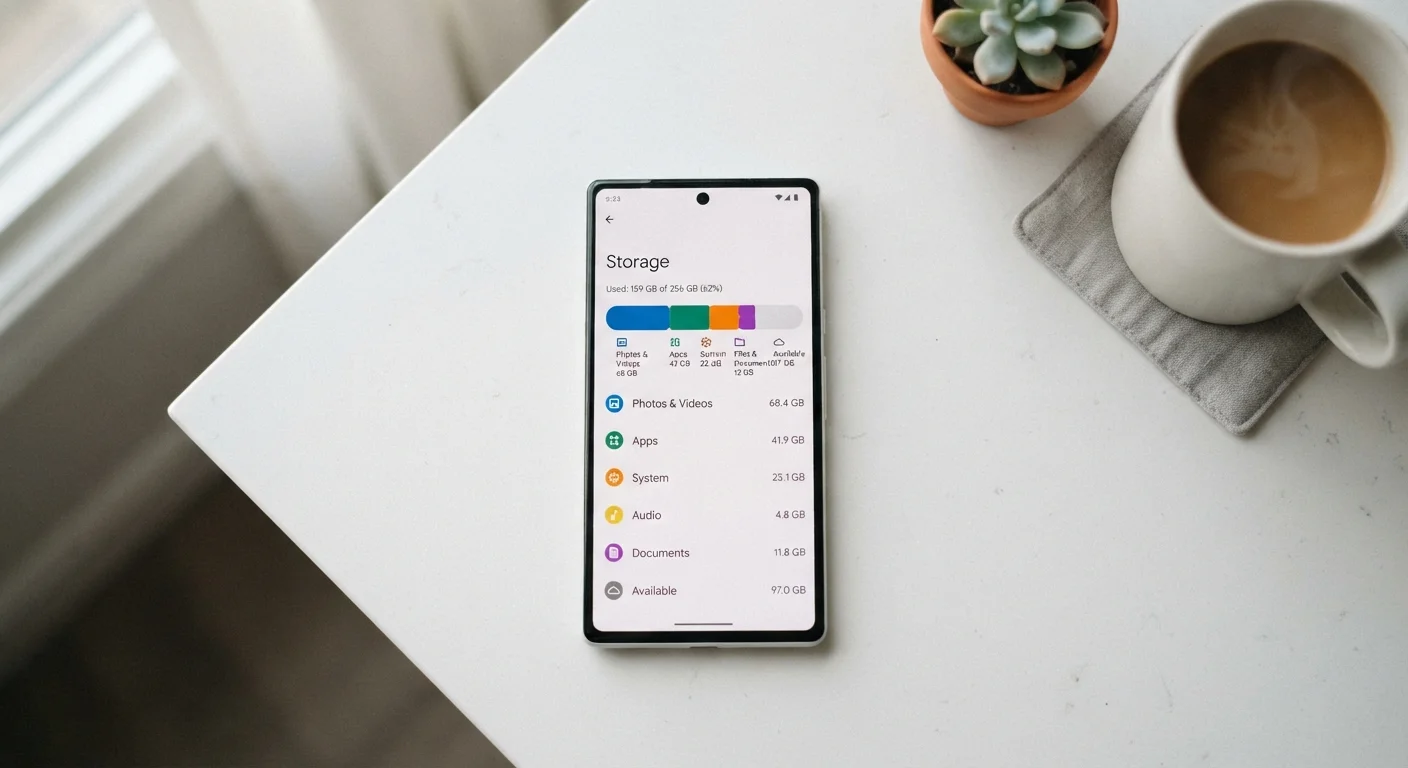
What Actually Fills Up Your Phone
When a phone runs out of storage, most people assume it's apps — but the real culprits are usually photos and videos. A single minute of 4K video can consume 300–400 MB. Multiply that by a few birthday parties, vacations, and screenshots, and a 64 GB phone fills faster than expected.
Beyond media, the second-biggest category is app data. This includes the app itself plus everything it accumulates over time: downloaded content, saved messages, offline maps, and cached files. A streaming music app, for instance, may store gigabytes of downloaded tracks locally. A navigation app can hold detailed regional maps. These aren't obvious until you look.
Cached data — temporary files apps create to load faster — is a smaller but still meaningful contributor. It's worth understanding that clearing a cache doesn't delete your personal content; it only removes these temporary speed files, which the app will regenerate during normal use. For a deeper look at how storage slowdowns are connected to overall performance, see why your phone slows down over time.
Other common contributors include downloaded podcast episodes, offline documents, and duplicate photos created during editing. Many users also forget that text messages — especially those containing video attachments — quietly accumulate over months and years.
Check Storage Before It Becomes Urgent
Most phones display a low-storage warning only when space drops to a critical level — by that point, normal functions like taking photos or receiving messages can start failing. Opening your storage breakdown once a month lets you deal with accumulation gradually rather than in a panic. It's one of the lowest-effort maintenance habits that pays off consistently.
How to Find and Reclaim Your Storage
Before deleting anything, use your phone's built-in storage tool to see a real breakdown by category. This prevents guesswork and helps you target the biggest items first.
What you will need
Open your phone's storage breakdown
On Android: Go to Settings > Storage. You'll see a bar divided by category — photos, apps, system, and other.
On iPhone: Go to Settings > General > iPhone Storage. The screen lists each app and how much space it and its data consume.
Take a moment to read this screen rather than immediately deleting. The largest categories will be clearly visible.
Back up and remove photos and videos you don't need on-device
Photos and videos are typically the fastest win. First, enable automatic backup through a cloud photo service so originals are preserved. Once you've confirmed the backup is complete, you can safely delete local copies from your Camera Roll or Gallery.
On iPhone, enabling Optimize iPhone Storage under Settings > [Your Name] > iCloud > Photos automatically keeps smaller versions on-device while full-resolution files live in iCloud. Android offers a similar option through Google Photos settings.
Offload or uninstall unused apps
On iPhone, the Offload App option removes the app's code while preserving its data — useful if you want to reinstall later. Delete App removes both.
On Android, long-press the app icon or go to Settings > Apps, select the app, and tap Uninstall.
Pay particular attention to games, streaming apps with downloaded content, and navigation apps — these routinely hold the most data.
Clear app cache and accumulated data
On Android: Go to Settings > Apps, choose an app, tap Storage, then tap Clear Cache. This removes temporary files without affecting your personal content inside the app.
On iPhone, iOS doesn't offer a per-app cache button in the same way — the equivalent is to offload and reinstall the app, which clears cached files. Some apps (browsers, for example) have their own internal clear-cache option inside their settings menus.
Delete downloaded content inside streaming and podcast apps
Open each streaming or podcast app you use and look for a Downloads or Offline section. Remove playlists, episodes, or shows you've already watched or no longer need. These downloads often persist indefinitely unless manually removed.
Similarly, check messaging apps for large attachments. On iPhone, go to Settings > General > iPhone Storage, tap Messages, and review the Review Large Attachments option to remove old videos and images sent via text.
Keep storage clear with a simple ongoing habit
Check your storage breakdown once a month — it takes under two minutes. Catching growth early means you'll never face a sudden full-storage error at an inconvenient moment. Storage warnings often surface right before a software update is ready to install, and a full device will block that update from completing. See what tends to go wrong when updating your phone's software to understand why low storage and updates don't mix well.
Once you've cleared space, a few habits keep it from filling back up. Consider whether each downloaded app still earns its place — unused apps that haven't been opened in months are ideal candidates for removal. For a broader look at what's commonly misunderstood about phone storage, phone storage myths that cause real problems is a useful companion read.
It's also worth understanding the tradeoffs between keeping files on your device versus moving them to a cloud service. Cloud storage vs. local storage covers those tradeoffs in practical terms. And if a storage crunch has you considering a new phone, setting up a new phone without losing your data walks through the transfer process step by step.
Don't Delete Without Backing Up First
Clearing storage feels satisfying in the moment, but permanently deleting photos or documents before confirming a backup is a common source of irreversible data loss. Always verify that a cloud or computer backup has completed successfully before removing any files you care about. When in doubt, back up twice.


