

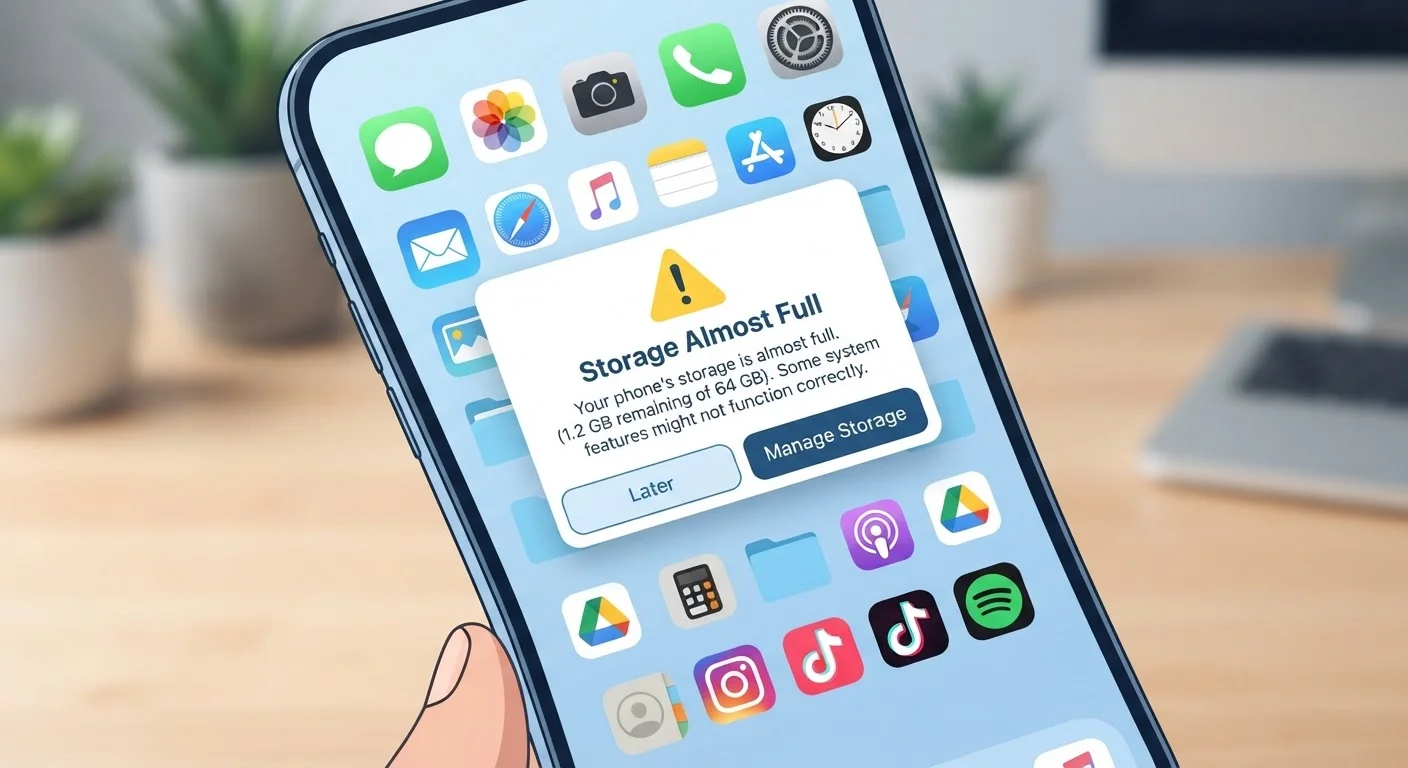
Why Storage Myths Spread
Mobile storage is invisible infrastructure. Most people never interact with it directly — they just notice when it runs out. That invisibility creates a vacuum where guesswork, oversimplified advice, and half-truths fill in the gaps.
The myths below aren't just harmless misconceptions. Acting on them can lead to real frustration: wasted time on fixes that don't work, accidental data loss, and phones that still run poorly even after an afternoon of "cleaning." Understanding what's actually happening inside your device is the first step toward decisions that genuinely help.
If you've noticed your device running slowly alongside storage warnings, our guide on what's taking up space and what to do about it walks through the real culprits and practical remedies.
Myth
RAM and storage are the same thing — more RAM means more space for files.
Fact
RAM (Random Access Memory) and internal storage are completely separate components with distinct functions.
RAM is short-term working memory. It holds the data your phone's processor is actively using right now — the app you have open, the webpage you're viewing. When you close the app, that RAM is freed automatically. Internal storage is long-term space where your photos, apps, downloaded files, and the operating system itself permanently reside.
Buying or using a phone with more RAM does not give you more room for photos. Similarly, a phone with 256 GB of internal storage might still have relatively modest RAM. They're measured in the same units (gigabytes), which fuels the confusion — but they perform entirely different jobs.
Myth
Clearing your cache regularly is essential maintenance that frees up significant storage.
Fact
Cache clearing offers limited, temporary relief and is not a substitute for addressing actual storage consumption.
App caches store temporary data — thumbnails, recently loaded content, login tokens — so apps load faster the next time you use them. Clearing a cache does reclaim some space, but usually far less than people expect, and that space refills quickly as you continue using the apps.
More importantly, clearing the cache does not touch photos, downloaded files, or app data (your saved progress, settings, and account information). If your phone is genuinely low on storage, the cache is rarely the main culprit. Relying on cache-clearing as a primary fix often means the real problem — large media files or unused apps — goes unaddressed.
Myth
Deleting an app removes it completely and instantly reclaims all of that app's storage.
Fact
Deleting an app removes its core files, but residual data — including downloaded content and saved files — may remain.
When you uninstall an app, the system removes the application itself. However, files that the app created or downloaded — documents, offline maps, media, game save data — can persist in your device's storage even after the app is gone, depending on the platform and how the app was built.
On both Android and iOS, some app-associated data may remain in dedicated storage folders. This is especially common with apps that allow offline downloads (music, navigation, or video apps). If you're trying to recover storage by deleting apps, check what files may be left behind, or use your phone's built-in storage management screen, which typically provides a more complete picture than simply uninstalling.
Myth
If photos are backed up to the cloud, they're no longer taking up space on your phone.
Fact
Cloud backup and local deletion are two separate actions; backup alone does not remove photos from your device.
Enabling a cloud photo service — whether Google Photos, iCloud, or another provider — uploads copies of your images to remote servers. Unless you explicitly turn on a setting that removes local copies after upload (and confirm those uploads are complete), the original full-resolution files remain on your device occupying the same amount of space as before.
Some apps offer an "optimize storage" or "free up space" feature that does remove local originals after confirming they've been safely backed up. But this setting is usually opt-in and is not enabled by default. Assuming the backup handled everything is one of the most common reasons people are surprised to find their storage still full after enabling cloud sync.
Myth
A slow phone always means the storage is full — clearing space will fix the performance.
Fact
Storage is one possible contributor to slowdowns, but sluggish performance has many other common causes.
It's true that when internal storage is critically low (generally under 10–15% free space), a phone's operating system can struggle to perform routine tasks like writing temporary files or updating apps, which does affect speed. But a phone that feels slow is not automatically a storage problem.
Background app activity, an aging battery that can no longer deliver peak power, an outdated operating system, or simply an older processor handling newer, more demanding apps are all common performance factors. Freeing up storage on a phone with a worn battery or an overloaded processor may produce little noticeable improvement. Diagnosing the actual cause — rather than defaulting to storage cleanup — leads to more effective solutions.
Making Smarter Storage Decisions
Once you separate myth from reality, a clearer picture emerges: storage management is less about constant cleaning and more about deliberate habits. A few practices make a meaningful difference over time.
- Audit your media regularly. Photos and videos are almost always the largest storage consumers on a phone. Periodically reviewing and offloading them — to a computer, external drive, or cloud service — prevents the sudden "storage full" surprise.
- Understand what cloud sync actually does. Enabling cloud backup for photos does not automatically free local space. Check whether your specific app and settings remove local copies after upload, or whether you need to do that manually. For a deeper look at the tradeoffs, see our overview of cloud storage vs. local storage.
- Check available storage before major updates. Software updates frequently require more free space than they appear to. Ignoring low-storage warnings before installing is one of the most common ways updates go wrong — something covered in detail in our piece on common mistakes when updating your phone's software.
Don't Delete Files to Free Space Without Verifying Backups
Before deleting photos, videos, or documents to reclaim storage, confirm those files are fully backed up to a location you can access later. Cloud sync progress can be interrupted by poor connectivity or storage limits on the cloud service itself. Deleting local copies of files before verifying they've actually uploaded is a common cause of permanent data loss.
Many of the same misconceptions people hold about phone storage also apply to laptops and PCs. If you've ever wondered whether more RAM always means faster performance, or believed that Macs never get bogged down, our article on PC myths that keep people from making smarter choices addresses those directly.


