

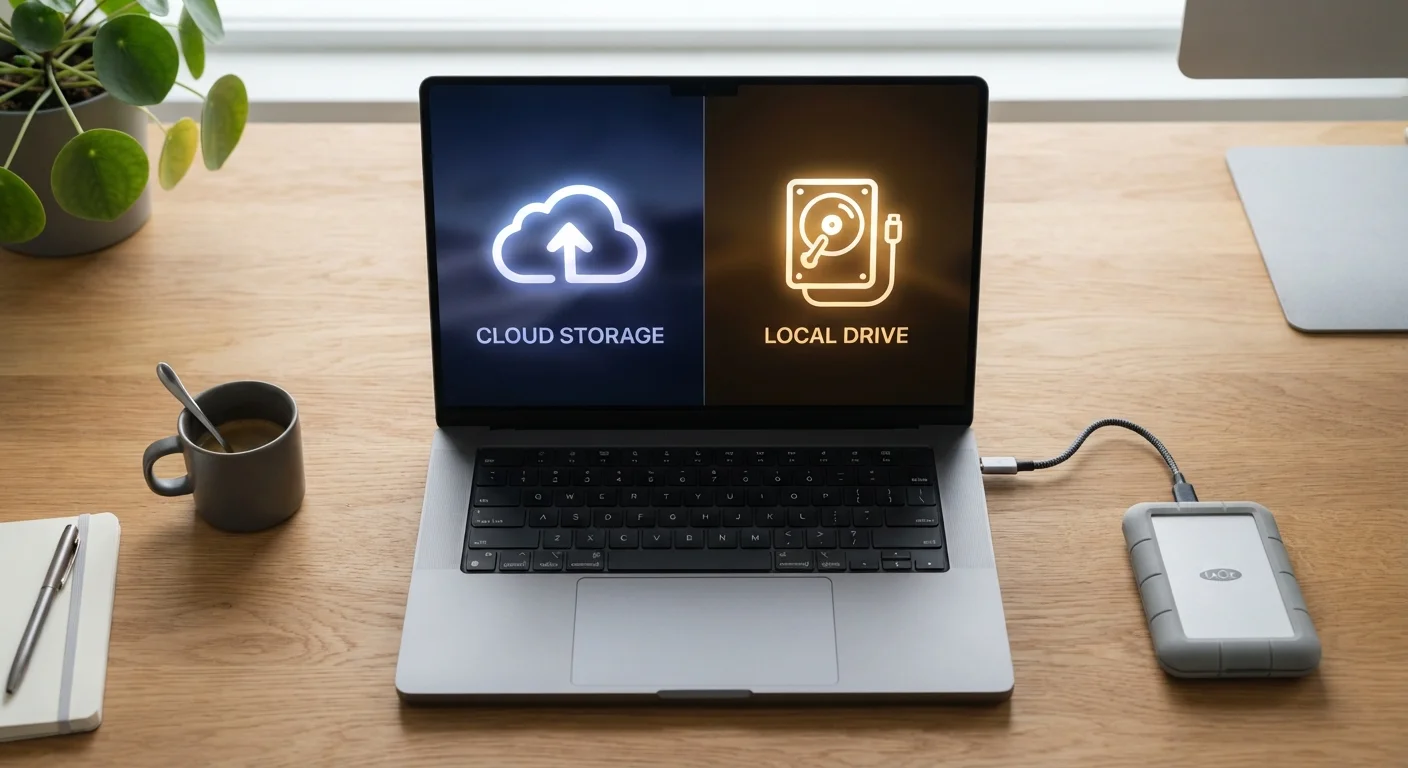
What Each Storage Type Actually Means
Local storage refers to any physical medium attached to or built into your device — the solid-state drive (SSD) or hard-disk drive (HDD) inside your laptop, an external USB drive, or a thumb drive. Files live on hardware you own and control. If you want to understand how SSDs and HDDs differ under the hood, see our guide to SSD vs. HDD storage.
Cloud storage means your files are uploaded over the internet to remote servers maintained by a third-party provider. You access them through an app or browser, and the provider is responsible for keeping the hardware running. Common examples include services that sync a folder on your desktop to their servers automatically.
Both approaches store data — they just store it in fundamentally different places, with different implications for access, cost, and control.
How They Compare Across Key Criteria
The decision often comes down to a handful of practical factors: how you access files, what happens when something goes wrong, and what you're comfortable sharing with a third party.
| Cloud Storage | Local Storage | |
|---|---|---|
| Access without internet | Limited or unavailable | Full, always available |
| Multi-device access | Seamless across devices | Requires manual transfer or network setup |
| Cost structure | Recurring subscription | One-time hardware purchase |
| Privacy control | Files on third-party servers | You control the hardware and access |
| Risk of data loss | Low (provider redundancy) | Higher if device fails or is lost |
| Storage capacity scalability | Easily upgraded via plan | Requires buying new hardware |
| File sharing and collaboration | Built-in, real-time | Manual sharing required |
One commonly misunderstood point: cloud storage and online backup are not the same thing. Cloud storage (like syncing a documents folder) keeps files accessible in real time. Online backup copies files to remote servers specifically for recovery purposes — often with version history. Mixing up the two can leave you unprotected when you think you're covered. For more storage misconceptions worth avoiding, see our piece on phone storage myths that cause real problems.
Privacy and Security Tradeoffs
When files are stored locally on an encrypted drive, only someone with physical access to your device — and the right credentials — can read them. That's a meaningful security advantage for sensitive documents like tax records, medical files, or legal paperwork.
Cloud providers protect data with encryption in transit and at rest, and reputable services undergo regular security audits. However, your files do reside on servers you don't control, governed by a privacy policy that can change. Providers may be subject to legal requests for your data depending on jurisdiction.
Don't Treat Cloud Sync as a Backup
Syncing files to the cloud means that if you accidentally delete a file — or ransomware encrypts your local drive — that change can propagate to your cloud copy almost immediately. True backup requires versioning or a separate backup service that retains older copies of your files. Check whether your cloud plan includes version history before assuming you're protected.
The practical middle ground many security-conscious users adopt: keep sensitive documents on a locally encrypted drive, and use cloud storage for lower-sensitivity everyday files like drafts, photos from a recent trip, or shared project documents.
Costs: One-Time vs. Ongoing
Local storage involves an upfront hardware cost — external drives range considerably in price depending on capacity and type — with no recurring fees. Once you own the drive, storage is effectively free until the hardware wears out.
Cloud storage is typically subscription-based, billed monthly or annually. Entry-level tiers often offer a modest free allowance, with paid plans unlocking larger capacity. Over several years, subscription costs can exceed what an equivalent local drive would have cost.
Evaluate What You Actually Use
Before subscribing to a larger cloud plan, audit which features you genuinely rely on — sync, versioning, or sharing. Many users pay for tiers that far exceed their real needs. A smaller cloud plan paired with an affordable external drive often covers both bases at lower total cost.
That said, cloud subscriptions often bundle additional features — file versioning, collaborative editing, or cross-device sync — that add genuine value beyond raw storage. Evaluating cost means factoring in what you actually use, not just gigabytes alone. If managing subscription costs is a concern, it's worth reviewing your overall digital spending as part of your household budgeting process.
When a Hybrid Strategy Makes the Most Sense
For most people, the strongest setup isn't either/or — it's both. A practical framework:
- Cloud storage for files you actively collaborate on, need across devices, or want automatically backed up offsite.
- Local storage for large files (video projects, photo archives), sensitive documents, or anything you want accessible without an internet connection.
- External drive backups as a safety net, following the 3-2-1 rule: three copies of important data, on two different media types, with one stored offsite or in the cloud.
If you're also managing storage on your smartphone and wondering what's quietly eating your space, our article on what's taking up space on your phone walks through the most common culprits and how to address them.


