

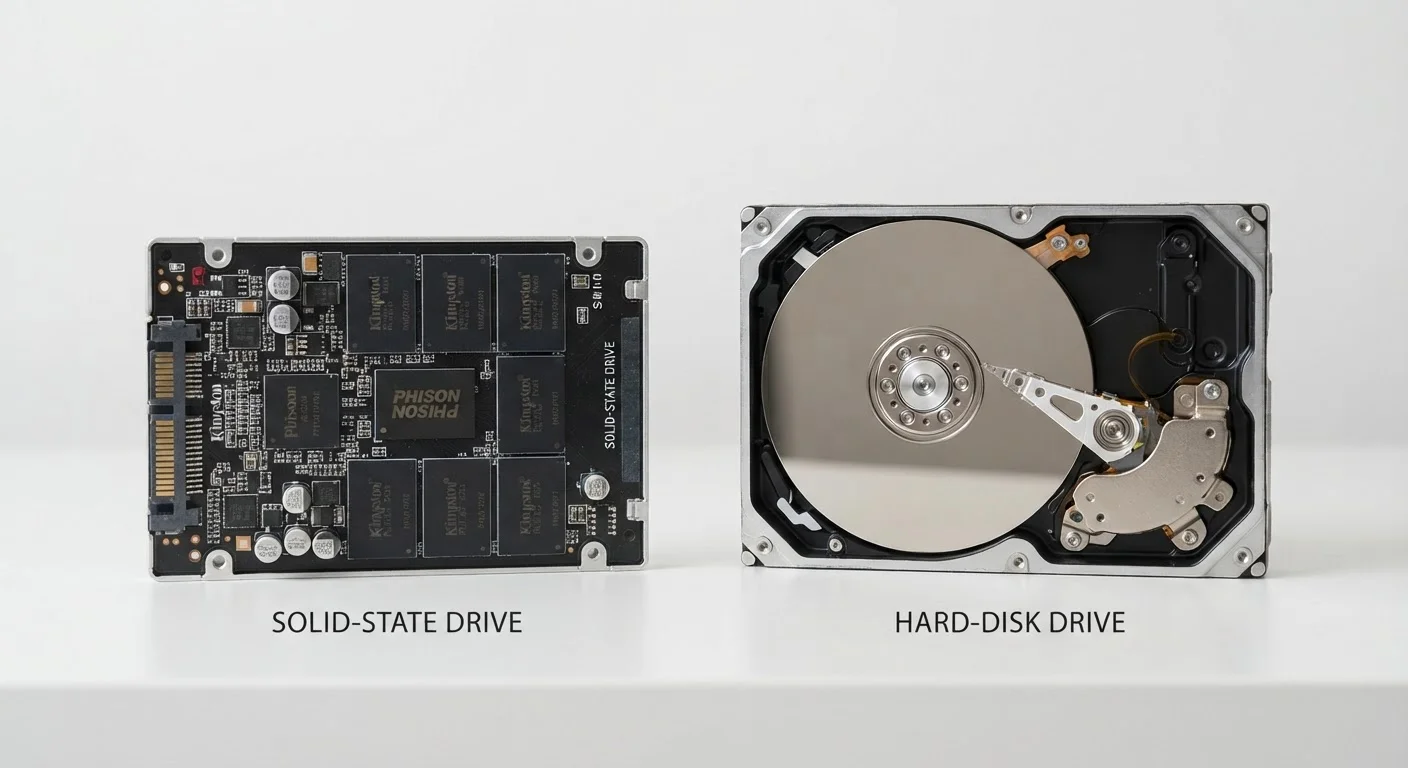
How Each Drive Actually Works
Understanding the difference between an SSD and an HDD starts with what's physically happening inside the drive when your computer reads or saves data.
An HDD (Hard-Disk Drive) stores data on magnetic platters that spin at high speed — typically 5,400 to 7,200 revolutions per minute. A read/write arm moves across the platter surface to find and access data, much like a record needle on a vinyl record. Because this process involves physical movement, it introduces measurable delays, particularly when accessing scattered data across the disk.
An SSD (Solid-State Drive) contains no moving parts at all. It stores data in NAND flash memory chips — the same fundamental technology used in USB thumb drives, just engineered for higher endurance and speed. Data is accessed electronically rather than mechanically, which is why SSDs respond so much faster.
This mechanical vs. electronic distinction is what drives virtually every difference in speed, noise, durability, and energy consumption between the two. For a broader look at how storage fits alongside other PC components, see our guide to RAM, storage, and processing power.
Speed, Noise, and Durability: Where SSDs Pull Ahead
For most users, speed is the most immediately felt difference. SSDs can read and write data several times faster than even high-performance HDDs. In practical terms, this translates to faster boot times (often under 15 seconds versus a minute or more), quicker application launches, and snappier file transfers.
3–10x
Typical SSD speed advantage over HDD
Sequential read speeds for mainstream SATA SSDs commonly range from 500–600 MB/s, compared to roughly 80–160 MB/s for typical consumer HDDs.
0
Moving parts inside a typical SSD
SSDs store data in NAND flash memory chips with no mechanical components, eliminating the primary physical failure point found in HDDs.
SSDs are also completely silent during operation. An active HDD produces an audible hum from its spinning platters and a clicking sound as the read/write arm moves — sounds that are absent with an SSD.
Durability is another clear SSD advantage. Because HDDs rely on a precisely moving arm over a spinning platter, a sharp knock or drop can cause a head crash — where the arm makes contact with the platter and damages the drive. SSDs are far more resilient to physical shock, which is why they became the default choice for laptops and portable devices.
HDDs do consume more power, which matters particularly for laptop battery life. An SSD's lower power draw can contribute to longer time between charges.
Capacity and Cost: Where HDDs Still Compete
HDDs retain a meaningful advantage in one area: the cost per gigabyte of storage. It is still possible to find HDD drives with several terabytes of capacity at prices that SSD options at equivalent sizes cannot match. For users who need to store large video libraries, photo archives, or system backups, this gap matters.
| Criterion | SSD | HDD |
|---|---|---|
| Moving parts | None (flash memory) | Yes (spinning platters) |
| Typical read speed | 500–7,000+ MB/s | 80–160 MB/s |
| Boot time | Often under 15 seconds | Often 45–90 seconds |
| Noise level | Silent | Audible hum and clicking |
| Shock resistance | High | Low |
| Cost per terabyte | Higher | Lower |
| Power consumption | Lower | Higher |
| Typical use case | Primary drive, laptops | Bulk storage, backups |
That said, SSD prices have fallen considerably over the years, and the gap has narrowed. For primary drives — the main storage used for your operating system, applications, and active files — most new computers now ship with SSDs as standard.
HDDs make the most sense as secondary storage: a desktop's second internal drive, an external backup drive, or a network-attached storage device. If you are weighing where your files should live more broadly, our article on cloud storage vs. local storage explores another dimension of that decision.
Which One Belongs in Your Setup?
For a laptop or desktop that you use daily, an SSD as the primary drive is the straightforward choice. The speed improvement alone transforms how a computer feels to use. If your budget requires trade-offs, a smaller-capacity SSD for the operating system and core applications — paired with an external HDD for bulk files — is a widely used and sensible approach.
For someone building out a home backup system or needing affordable mass storage that stays in one place, an HDD remains a practical and cost-effective tool. The key is matching the drive type to the job: SSDs for speed-sensitive tasks, HDDs for high-capacity, lower-activity storage.
If you are also thinking through the broader question of desktop versus portable setups, our desktop vs. laptop trade-offs guide covers how storage fits into that larger decision.
NVMe SSDs: A Faster Variant Worth Knowing
Some SSDs use a connection standard called NVMe (Non-Volatile Memory Express), which allows even faster data transfer than the older SATA connection used by most HDDs and earlier SSDs. NVMe drives plug directly into a motherboard slot and are common in modern laptops and desktops. If a spec sheet lists "NVMe SSD," that indicates a faster drive than a standard SATA SSD — though both are still far quicker than any HDD for everyday tasks.


