

Why These Three Specs Cause So Much Confusion
When you look at a computer listing, you'll typically see numbers like "16GB RAM," "512GB SSD," and "Intel Core i5." These specs are all listed together, but they describe completely different things. Treating them as interchangeable — or assuming that a bigger number in one category compensates for a weakness in another — is one of the most common mistakes consumers make.
Each component has a specific job. Understanding what that job is, and how it shows up in real everyday use, makes choosing a computer considerably less mysterious. For a broader look at how these same concepts apply to phones, see our plain-language tour of smartphone hardware.
8–16GB
RAM range suited for most everyday users
Technology educators and industry guides generally cite this range as sufficient for typical productivity, browsing, and streaming workloads.
5–10x
Speed difference between SSD and HDD for typical reads
Benchmarking data from storage hardware testing consistently shows SSDs outperforming traditional spinning HDDs by this margin on common read/write tasks.
256GB–512GB
Most common storage range in mainstream laptops
Consumer electronics market data indicates that the majority of laptops sold for everyday use ship with SSD storage in this capacity range.
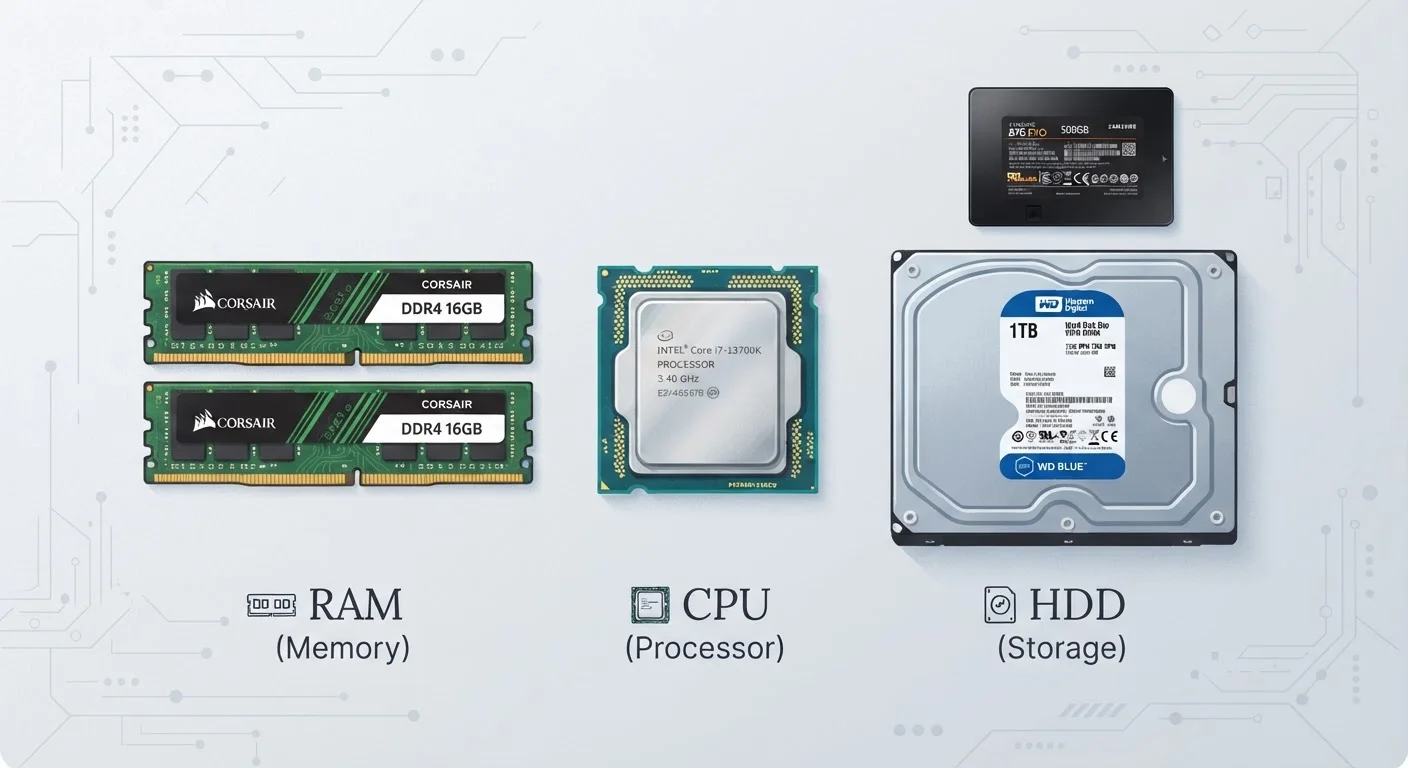
RAM: Your Computer's Active Workspace
RAM stands for Random Access Memory. It's the temporary workspace your computer uses while it's actively running programs. When you open a browser with ten tabs, a spreadsheet, and a video call simultaneously, your computer loads all of that into RAM so it can switch between them quickly.
When RAM runs low, your computer starts moving some of that active data to storage instead — a much slower process. That's typically why an older or underpowered machine starts crawling when you have too many things open at once.
RAM doesn't store anything permanently. The moment you shut down your computer, RAM clears completely. It's purely a performance resource, not a place to save your work.
Check What You Can Upgrade Before You Buy
Some laptops allow you to add more RAM or swap in a larger SSD after purchase, which can extend the machine's useful life. Others have these components permanently attached to the motherboard. If future-proofing matters to you, verify the upgrade options for any model before committing.
For most everyday users, 8GB of RAM is a functional minimum, and 16GB offers noticeably more headroom for multitasking. Our guide to common laptop myths addresses the frequent misconception that more RAM always equals a faster machine in every scenario.
Storage: Your Computer's Long-Term Memory
Storage is where everything lives when it's not actively in use — your operating system, installed applications, documents, photos, music, and downloads. Unlike RAM, storage retains its contents when the power is off.
Storage capacity is measured in gigabytes (GB) or terabytes (TB). But capacity isn't the only thing that matters: the type of storage has a major impact on how fast your computer feels. Solid-state drives (SSDs) load programs and files dramatically faster than older spinning hard-disk drives (HDDs). For a detailed look at that difference, see our article on SSD vs. HDD performance in everyday use.
A common misconception is that adding more storage will speed up a slow computer. Storage capacity does not affect processing speed — it only determines how much you can save.
Processing Power: The Brain Behind Every Task
The CPU — Central Processing Unit — is the component that actually executes instructions. Every action you take on a computer, from clicking a link to exporting a video, involves the CPU doing computational work. A faster CPU with more cores can handle more complex tasks and more simultaneous processes without bogging down.
CPU performance is described using metrics like clock speed (measured in GHz) and core count. Higher clock speed generally means faster individual task execution, while more cores allow for better multitasking and parallel processing — particularly useful for video editing, software development, or running scientific applications.
For light everyday use — email, documents, streaming — even modest CPUs perform well. The gap becomes apparent when workloads grow heavier. Understanding the CPU's role alongside RAM and storage is covered in more depth in our full laptop anatomy guide.
“The CPU is the single component that all other hardware serves. RAM feeds it data quickly; storage holds the data until it's needed. When any one of them lags, the whole system slows — regardless of how capable the others are.”
— Tech & Electronics Editorial Team, Consumer Technology Educators
How the Three Work Together
Think of it this way: the CPU is the chef, RAM is the prep counter, and storage is the pantry. A skilled chef can't work efficiently on a tiny counter or with ingredients stored far away in a disorganized pantry. All three need to be reasonably matched to each other.
A powerful CPU paired with too little RAM will still stutter under heavy multitasking. Plenty of RAM with a slow spinning hard drive will still make your computer feel sluggish at startup and when launching apps. The goal isn't to maximize any single spec — it's to have components that don't bottleneck each other for the tasks you actually do.
Readers who want to understand how graphics fit into this picture can explore the integrated vs. dedicated graphics question as a natural next step. And if you're weighing which tradeoffs matter most before purchasing, common PC decisions people regret walks through the reasoning errors that lead to buyer's remorse.
This article is for informational and educational purposes only. Specifications and performance will vary by device, manufacturer, and individual use case.


