

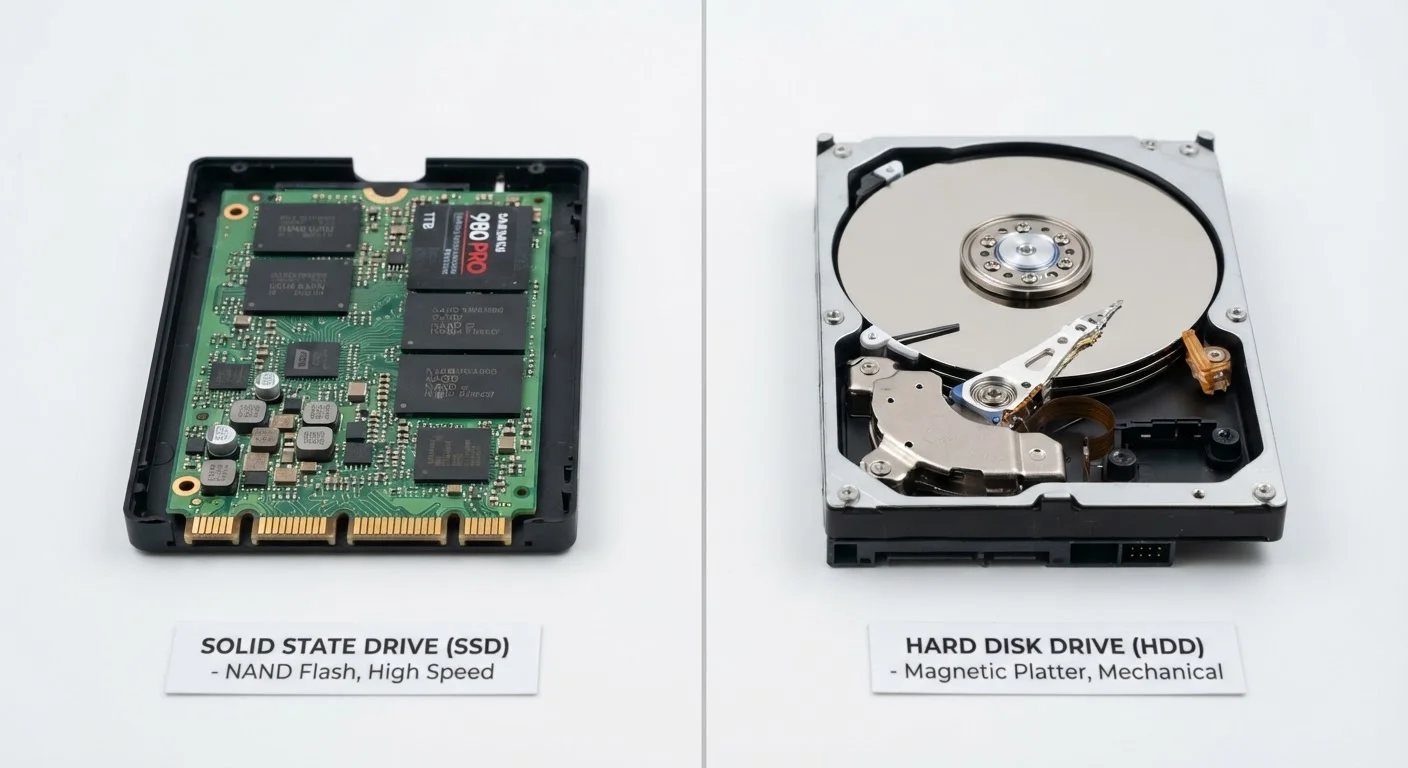
How Each Drive Actually Works
Understanding the difference between an SSD (solid-state drive) and an HDD (hard disk drive) starts with what happens physically inside each one.
An HDD stores data on spinning magnetic platters — physical disks that rotate at high speed while a read/write head moves across the surface to find or record information. Because this process depends on mechanical movement, it takes measurable time for the head to reach the right spot. That tiny delay, multiplied across thousands of operations, is a key reason HDDs feel slower in everyday use.
An SSD stores data on flash memory chips — the same general technology used in USB thumb drives, but engineered for much higher speed and durability. There are no spinning parts, no moving heads, and no waiting for a mechanism to physically seek data. The drive reads and writes electronically, which is fundamentally faster.
For a broader look at how storage fits alongside RAM and processing power in a computer, see what RAM, storage, and CPU each do.
| Criterion | SSD | HDD |
|---|---|---|
| Technology | Flash memory chips | Spinning magnetic platters |
| Typical boot time | Under 15 seconds | 45 seconds to 1+ minute |
| Noise level | Silent | Audible hum or clicking |
| Shock resistance | High — no moving parts | Lower — mechanical parts vulnerable |
| Cost per gigabyte | Higher | Lower |
| Common capacity range | 250 GB – 4 TB | 500 GB – 20+ TB |
| Best use case | OS, apps, everyday files | Bulk storage, backups, archives |
Speed, Noise, and Durability in Real Life
The mechanical design of an HDD has practical consequences beyond raw speed. The spinning platters and moving head produce audible noise — a faint hum or occasional clicking — that SSDs simply don't generate. In a quiet home office, the difference is noticeable.
Durability is another important gap. Because HDDs rely on precise mechanical movement, a sharp bump while the drive is active can cause a head crash — contact between the read/write head and the platter — potentially damaging data. SSDs have no such vulnerability. This makes SSDs a considerably safer choice inside a laptop that gets carried around regularly.
3–5×
Typical SSD speed advantage over HDD
Sequential read/write speeds for consumer SSDs commonly range from 500 MB/s to over 3,000 MB/s, versus roughly 80–160 MB/s for typical HDDs.
~$0.03–$0.05
Approximate HDD cost per gigabyte (USD)
HDDs generally cost significantly less per gigabyte than SSDs, making them a practical choice for large-volume storage needs.
Boot time offers the clearest everyday illustration: a computer equipped with an SSD typically reaches the desktop in under 15 seconds, while an equivalent machine with an HDD may take 45 seconds to a minute or more. App launches, file transfers, and browser performance all follow a similar pattern.
If you're also weighing whether a laptop or desktop makes more sense for your lifestyle, the storage drive type is one of several practical factors covered in how laptops and desktops compare for everyday use.
Capacity, Cost, and Where HDDs Still Make Sense
HDDs still hold a genuine advantage in cost-per-gigabyte. For the same dollar amount, an HDD typically offers two to four times more raw storage capacity than an SSD. That gap matters when you're storing large video files, photo archives, music collections, or system backups that can stretch into multiple terabytes.
This is why many desktop computers use both drive types: a smaller SSD for the operating system and frequently used applications (where speed is felt most), paired with a larger HDD for bulk storage. This hybrid approach captures the performance benefits of an SSD without paying SSD prices for every gigabyte.
The Hybrid Drive Strategy
Many desktop builders pair a smaller SSD (for the operating system and apps) with a larger HDD (for documents, media, and backups). This approach delivers fast everyday performance without paying SSD prices for every gigabyte. It's less practical in laptops, which typically have space for only one drive, but worth considering if you're building or upgrading a desktop system.
External HDDs also remain a popular choice for backup drives — affordable, high-capacity, and effective for data you access infrequently. For a deeper look at how storage type affects long-term reliability and capacity planning, learn how each drive type affects speed, durability, and storage capacity.
When making any storage decision, it helps to understand what computer specs actually mean for everyday use so you're comparing drives in full context.


