

Why Specs Matter — and Why They're Often Misread
Walk into any electronics retailer or browse online, and you'll be hit with a wall of numbers: 16 GB RAM, 512 GB SSD, Intel Core i5, 3.6 GHz. These figures aren't arbitrary — each one describes a specific hardware component that directly affects your experience. The problem is that spec sheets are written for engineers, not everyday consumers.
The good news: you don't need a computer science degree to understand what these numbers mean in practice. Once you know what each spec measures, you can evaluate whether a machine suits your actual needs rather than guessing based on price alone. For a broader vocabulary reference, see our plain-language glossary of computer terms.
8 GB
Typical RAM for everyday computing tasks
Industry guidance consistently points to 8 GB as a practical minimum for general-purpose laptops used for browsing, email, and productivity software.
3–5x
Speed advantage of SSDs over traditional HDDs
Benchmark tests across consumer drives show SSDs delivering sequential read speeds several times faster than standard spinning hard drives.
4–8 cores
Common core count in mainstream consumer laptops
Most mid-range laptops sold in the US market feature processors with four to eight cores, balancing multitasking performance with battery efficiency.
RAM: Your Computer's Short-Term Memory
RAM — which stands for Random Access Memory — is the temporary workspace your computer uses while running programs. When you open a browser, a spreadsheet, or a video call app, the data those programs need gets loaded into RAM so the processor can access it almost instantly.
The more RAM you have, the more programs (and browser tabs) you can keep active at once before the computer starts to slow down. When RAM fills up, the system borrows space from your storage drive to compensate — a much slower process that you'll feel as lag or stuttering.
RAM capacity is measured in gigabytes (GB). For most everyday tasks — web browsing, email, word processing — 8 GB is a functional baseline. Multitaskers, video editors, and people who keep dozens of tabs open simultaneously tend to benefit from 16 GB or more.
Think of RAM Like a Physical Desk
The bigger your desk, the more projects you can spread out and work on at the same time without shuffling things aside. RAM works the same way — more of it means more programs can stay active and ready without your computer needing to 'put things away' to make space. If your computer feels sluggish with multiple apps open, RAM capacity is often the first thing worth checking.
Storage: Where Your Files Actually Live
While RAM holds data temporarily, storage is where everything lives permanently — your photos, documents, downloaded apps, and the operating system itself. When you save a file and turn off your computer, storage is what preserves it.
Storage capacity is also measured in gigabytes (GB) or terabytes (TB), where 1 TB equals roughly 1,000 GB. More storage means more room for your files and installed software.
But capacity isn't the only factor — the type of storage matters enormously. Traditional HDDs use spinning magnetic disks, while SSDs use flash memory with no moving parts. SSDs are significantly faster, quieter, and more durable. For a detailed look at how the two compare day to day, see our guide on SSD vs. HDD performance differences.
Processing Power: The CPU Explained
The CPU — often called the processor — is the component that executes instructions. Every time you open an app, load a webpage, or export a file, the CPU is doing the computational work. Its performance is described by two main figures: clock speed (measured in GHz) and core count.
Clock speed describes how many processing cycles per second the chip can complete. Higher GHz generally means faster single tasks. Cores are independent processing units within the chip — a quad-core processor can handle four streams of work simultaneously. For tasks like video rendering or running multiple applications at once, more cores often matter more than raw clock speed.
To understand how these same principles apply inside a smartphone, our article on what's inside your smartphone covers the mobile equivalent in plain language.
Putting It All Together: Matching Specs to Real-World Use
No single spec tells the whole story. A computer with fast RAM but a slow processor will still bottleneck on computation-heavy tasks. A high-core-count CPU paired with minimal storage runs out of room quickly. The components work as a system, and balance matters.
A useful habit is to check the recommended system requirements for the software or games you plan to use — those numbers are the manufacturer's honest assessment of what delivers a good experience. For a deeper look at how to interpret spec sheet numbers line by line, see what the numbers in a laptop spec sheet actually mean.
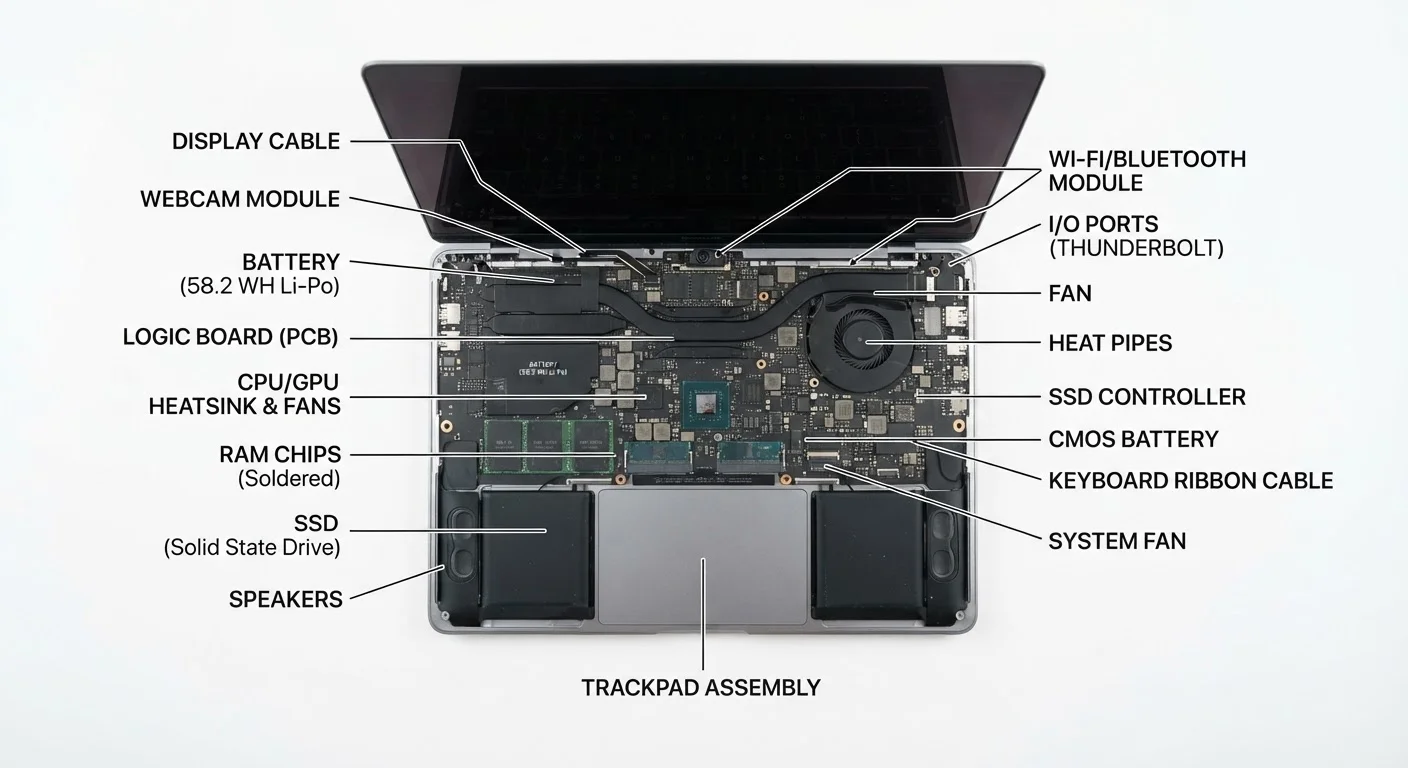
Understanding the anatomy of your machine also helps. Our guide to laptop components walks through each physical part in context. With a working knowledge of RAM, storage, and processing power, you're equipped to read a spec sheet and understand what it actually means for your daily experience.
Specs Vary by Intended Use
A spec level that's perfectly adequate for email and document editing may feel limiting for video editing, 3D design, or modern gaming. There's no universal 'good' spec — context determines what's appropriate. Always consider your specific workload rather than chasing the highest numbers available.


