

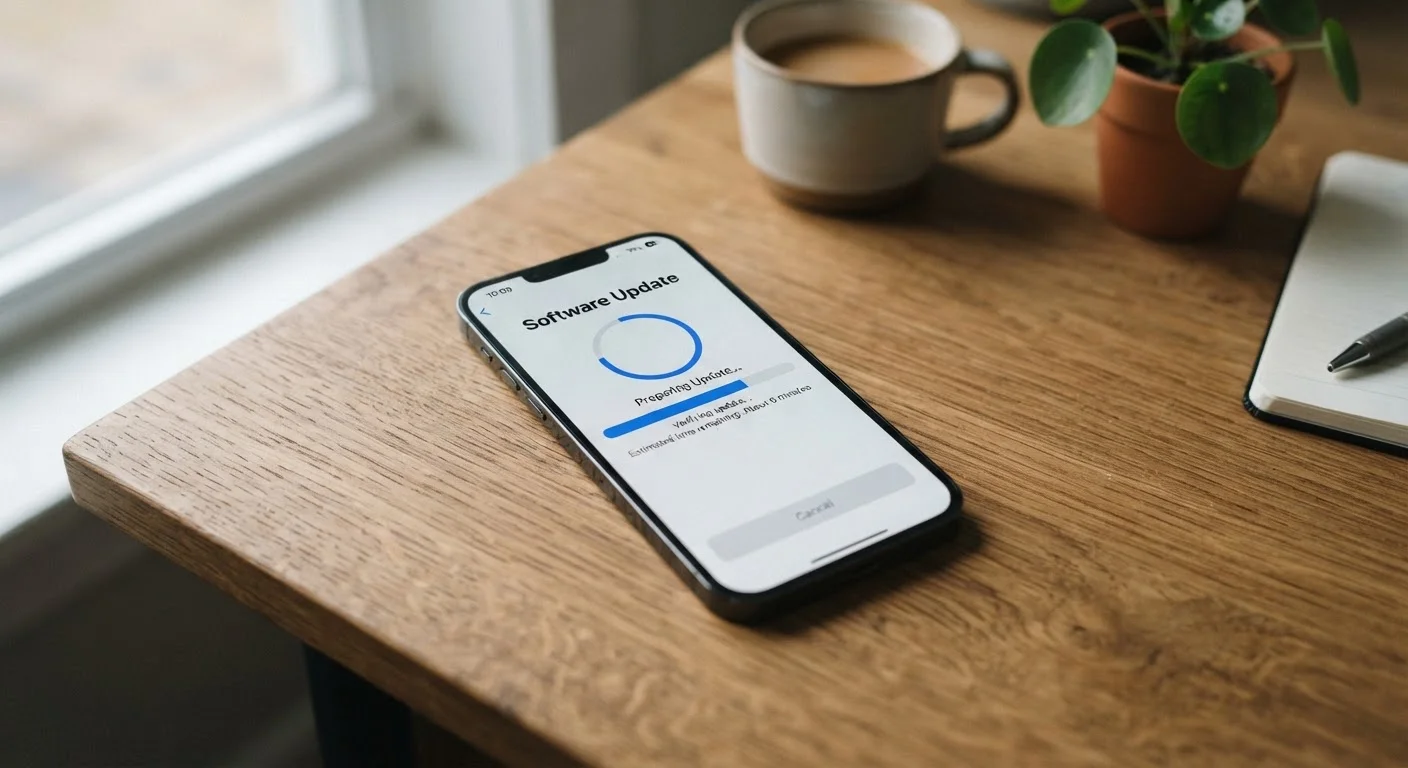
Why Getting Updates Right Actually Matters
Software updates do more than add new features. They patch security vulnerabilities, fix bugs that drain your battery or cause crashes, and keep your apps running as their developers intended. Missing them — or installing them carelessly — has real consequences.
If you're newer to managing a smartphone, the smartphone basics guide is a good starting point for understanding how your device's software layer works before diving into updates.
The mistakes below are the ones we see most consistently cause problems. Most are easy to prevent once you know what to watch for.
~40%
Users running outdated mobile OS versions
Industry estimates consistently show a significant share of active smartphones running software that is at least one major version behind the latest release.
60%+
Of mobile exploits target known, patched vulnerabilities
Security researchers have noted that a majority of successful mobile attacks take advantage of flaws that had already been fixed in available updates.
The Most Common Update Mistakes — and How to Fix Them
Each of these errors is avoidable with a small amount of preparation. The pattern is almost always the same: the update itself isn't the problem — the conditions around the update are.
Back Up Before Every Update
No software update is risk-free. Even routine updates can occasionally fail in ways that affect your data. Before tapping "Install," make sure your photos, contacts, and app data are backed up to the cloud or a computer. This single step protects you if anything goes wrong during installation.
Skipping the backup step entirely before installing an update.
Why it happens: Most updates go smoothly, so people assume a backup is unnecessary overhead. The process feels routine and low-risk.
Starting an update with insufficient storage space on the device.
Why it happens: Update files and the installation process require temporary working space beyond the final file size. Users see "2 GB available" and assume that's enough.
Installing updates when the battery is below 50%.
Why it happens: The notification arrives and users tap install immediately without checking the charge level, especially if they're already using the phone.
Indefinitely postponing updates by tapping "Remind Me Later" every time.
Why it happens: Updates arrive at inconvenient moments, and the prompt is easy to dismiss. Over time, repeated delays become a habit.
Updating over a weak, slow, or public Wi-Fi connection.
Why it happens: Users see a Wi-Fi icon and assume any connection is acceptable. They don't consider signal strength or network reliability.
Forcing a restart or using the phone during the installation process.
Why it happens: The update takes longer than expected and users assume something has frozen, or they need to use the phone urgently.
Don't Update on Public Wi-Fi
Public networks at coffee shops, airports, or hotels are not reliable or secure enough for a phone update. A dropped connection mid-install can corrupt the update file, and public networks carry higher security risks. Always update from your home or a trusted private network.
If your phone has been feeling sluggish after a recent update, that's a separate issue worth exploring. Our article on why phones slow down over time explains what's actually happening and which remedies are realistic.
Building Better Update Habits Going Forward
The simplest long-term habit is enabling automatic updates. Both Android and iOS let you set updates to install overnight while your phone charges — removing the decision entirely. Pair that with automatic backups and you've addressed the two biggest risks with almost no ongoing effort.
For anyone switching to a new device, it's worth reviewing the steps for setting up a new smartphone without losing data — proper setup from day one reduces the friction of every update that follows.
Think of software updates the way you'd think about routine maintenance: small, consistent attention prevents the larger problems that come from prolonged neglect.


