

Why Data Transfer Goes Wrong (And How to Avoid It)
Most people lose data during a phone switch not because the transfer tools are unreliable, but because they skip the backup step or rush through setup on a poor connection. The transfer process — whether you're moving between two Android phones, two iPhones, or crossing platforms — is well-supported by built-in tools. Understanding what those tools can and can't do sets accurate expectations.
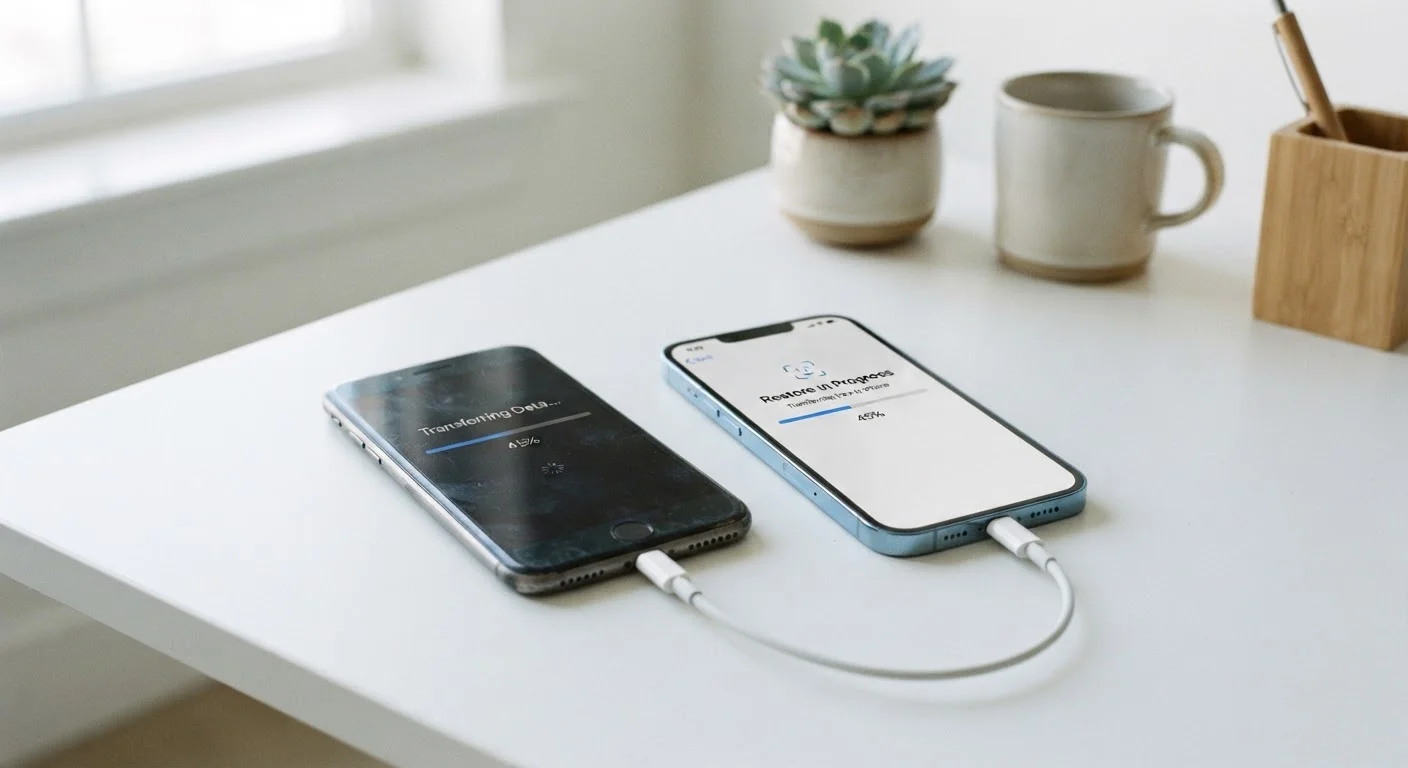
Cloud-based transfers depend on having recent, complete backups stored in your account. If your Google or iCloud backup hasn't run in weeks, the transfer will only restore data up to that point. A direct cable or local wireless transfer between phones can move more data more quickly, but both phones need to stay powered and connected throughout.
For a broader understanding of how your phone organizes storage, accounts, and settings, the smartphone fundamentals guide is a useful starting point before you begin.
Back Up First — No Exceptions
Never begin a phone transfer without completing a full backup of your old device. If the transfer fails or your old phone is damaged mid-process, an up-to-date backup is your only safety net. Make sure the backup has fully finished before you proceed — a backup that's still in progress is not a usable backup.
Here's what you'll need before starting:
What you will need
And the tools that make the process smoother:
Google One / Google Account Backup (Android)
Automatically backs up contacts, photos, app data, and settings to Google's cloud storage.
iCloud Backup (iPhone)
Creates a full encrypted backup of your iPhone — including photos, messages, and app data — to Apple's servers.
Move to iOS app (switching from Android to iPhone)
Free app from Apple that transfers contacts, photos, messages, and bookmarks directly from an Android device to a new iPhone.
USB Transfer Cable
Enables a direct wired connection between phones for faster, more reliable data transfer without relying on cloud storage.
Step-by-Step: Moving Your Data to the New Phone
Follow these steps in order. Don't skip the backup — everything else depends on it.
Use the Same Wi-Fi Network for Both Phones
Many built-in transfer tools work fastest and most reliably when both devices are on the same Wi-Fi network. If you're using a cable to transfer directly between phones, keep both plugged into power throughout the process to avoid an interruption mid-transfer.
Back Up Your Old Phone Completely
On Android: Go to Settings → System → Backup and confirm that Google Backup is turned on. Tap Back up now and wait for it to complete. For photos, open Google Photos and verify that backup is enabled under your account settings.
On iPhone: Go to Settings → tap your name → iCloud → iCloud Backup → Back Up Now. Stay on Wi-Fi until the backup timestamp updates.
Gather What You Need Before Turning On the New Phone
Before you power up the new device, collect your account credentials — your Google or Apple ID email and password, plus passwords for any important apps like banking or email. If you're moving a SIM card from your old phone, power both phones down before swapping it. For an eSIM, contact your carrier to confirm how to transfer your number to the new device.
Start the Setup and Choose Your Transfer Method
Power on your new phone and follow the on-screen setup prompts until you reach the data transfer screen.
- Android to Android: Select Copy data from your old device. You can transfer via cable (faster) or Wi-Fi (wireless). Follow the prompts on both phones.
- iPhone to iPhone: Use Quick Start — hold the phones near each other when prompted. Alternatively, restore from your iCloud backup during setup.
- Android to iPhone: Download the Move to iOS app on your Android phone before setup, then select Move Data from Android on the iPhone setup screen.
- iPhone to Android: Restore photos via Google Photos and contacts via Google Contacts by signing in to your Google account on the new phone.
Verify Everything Transferred Correctly
Once setup is complete, check these key areas on your new phone:
- Contacts: Open the Contacts or Phone app and scroll through to confirm your entries are there.
- Photos: Open the Photos or Gallery app and check that recent images are visible — cloud photos may take a few minutes to download over Wi-Fi.
- Apps: Most apps will reinstall automatically, but some may require you to log back in. Banking and two-factor authentication apps in particular often need manual setup.
- Messages: SMS history transfers more reliably between two iPhones than across platforms. Cross-platform message history transfer is limited.
Sign Out of Accounts on Your Old Phone
Once you're confident everything is on the new device, sign out of your accounts on the old phone. On iPhone, go to Settings → your name → Sign Out. On Android, go to Settings → Accounts and remove each Google account. This disconnects your personal data from the device before you sell, recycle, or hand it off. See our account removal checklist for a thorough walkthrough.
Don't Factory Reset Your Old Phone Yet
Keep your old phone intact until you have confirmed that everything — your contacts, photos, and apps — has successfully transferred and is accessible on the new device. Wiping your old phone prematurely is one of the most common causes of permanent data loss during a phone switch. Once you're satisfied the new device has everything, see our checklist for safely wiping your old phone before passing it on.
Once your new phone is confirmed to have all your data and your old accounts are signed out, you're ready to complete the final reset steps before the old device changes hands. If you run into software-related problems during or after setup, reviewing common software update mistakes can help you avoid compounding the issue.


