

What a Smartphone Actually Is
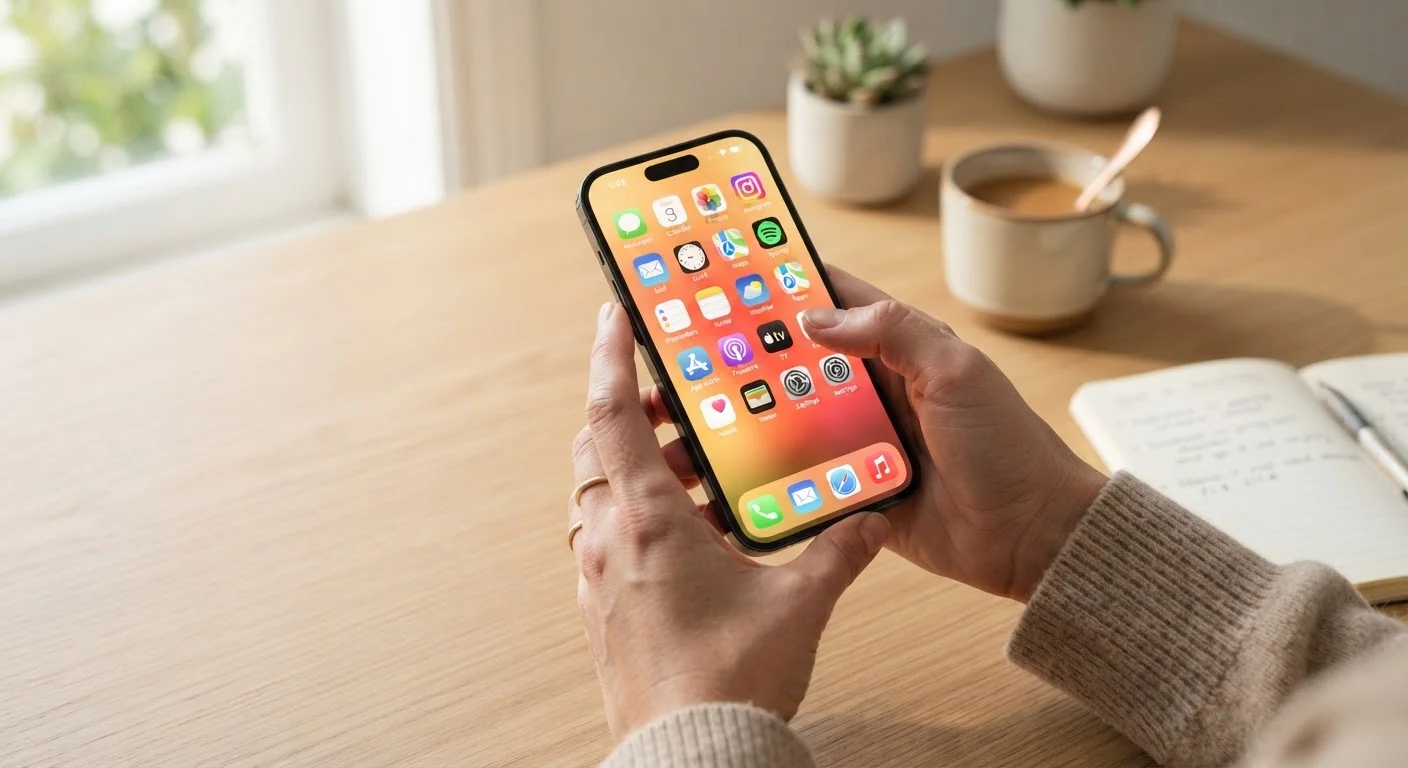
A smartphone is a handheld computer that happens to also make phone calls. It connects to the internet, runs software applications (called apps), and stores your photos, messages, and documents — all in a device that fits in your pocket.
Almost all smartphones run one of two operating systems: iOS, made by Apple for iPhones, or Android, used by a wide range of manufacturers. An operating system is the core software that manages everything else — think of it as the engine under the hood. For a deeper look at the hardware making all of this possible, see our plain-language tour of smartphone hardware.
Operating System
The core software that runs your phone and manages all other apps. iOS and Android are the two most common examples on smartphones.
App
A program you download to perform a specific task — like reading email, navigating, or browsing the web — on your phone.
Storage
The built-in space on your device used to hold apps, photos, messages, and files. When it fills up, your phone may slow down or stop accepting new files.
Permissions
The access rights an app requests — such as access to your camera, location, or contacts. You can grant or revoke these in your phone's Settings.
Cloud Backup
A copy of your phone's data stored on remote servers over the internet, so your photos and contacts are safe even if your device is lost or damaged.
Mobile Data
Internet access delivered through your cellular carrier's network. It works anywhere with a signal but is typically limited by a monthly data allowance.
Navigating the Basics: Gestures and Settings
Modern smartphones rely on touchscreen gestures rather than physical buttons for most actions. Here are the ones you will use daily:
- Tap — a single touch to open an app or select something.
- Swipe — slide your finger across the screen to scroll or switch between screens.
- Pinch and spread — use two fingers to zoom out or in on photos and web pages.
- Long press — hold your finger on an item for extra options.
Your phone's Settings app is where you control almost everything — display brightness, notification sounds, Wi-Fi networks, and more. Spend a few minutes exploring it early on; most options have plain descriptions that make their purpose clear without any technical background.
Explore Settings Gradually
You do not need to learn every setting at once. Start by locating Display, Sound, and Wi-Fi settings — those will be the most immediately useful. As you grow comfortable, explore Notifications and Privacy to fine-tune how your phone behaves throughout the day.
Apps, Storage, and Keeping Things Organized
Apps are programs you download to do specific things — browse the web, take photos, check email, or navigate with maps. You find them in the App Store (iPhone) or Google Play (Android). Before installing an app, check the permissions it requests. An app asking to access your microphone or location should have an obvious reason for needing it.
Storage is the space your phone uses to hold apps, photos, and files. When storage fills up, the phone can slow down or prevent you from taking new photos. Offloading photos to a cloud backup service and periodically deleting unused apps are the simplest ways to keep space available.
Organize your home screen by grouping related apps into folders — most phones let you do this by long-pressing an app icon and dragging it onto another. A tidy home screen makes everything faster to find.
Staying Secure From Day One
Setting up a screen lock — a PIN, pattern, password, or fingerprint — is the single most important security step you can take. It prevents anyone who picks up your phone from accessing your accounts and personal data.
Beyond the lock screen, keep the following in mind:
- Install software updates promptly, since they frequently patch security vulnerabilities.
- Be cautious on public Wi-Fi; avoid logging into banking or email on networks you do not trust.
- Review app permissions in Settings periodically and revoke access that no longer makes sense.
For a thorough look at everyday security habits, our article on keeping your phone secure covers the full picture. And before you ever pass an old phone along to someone else, check our checklist for handing off an old phone to make sure your data is fully removed.
Public Wi-Fi Carries Real Risks
Open Wi-Fi networks in cafés, airports, and hotels are convenient, but they can expose your activity to others on the same network. Avoid accessing sensitive accounts — like banking or email — over public Wi-Fi unless you are using a trusted VPN. When in doubt, switch to your mobile data connection instead.
Connectivity: Wi-Fi, Mobile Data, and Bluetooth
Your phone can connect to the internet in two ways. Wi-Fi uses a wireless router — typically at home or in a coffee shop — and does not count against your cellular plan. Mobile data (sometimes called cellular data) comes from your carrier's network and is available nearly everywhere, but usage is capped by your monthly plan.
A quick rule of thumb: connect to Wi-Fi when you can, and switch to mobile data when Wi-Fi is unavailable. You can toggle both in Settings or from the quick-access panel (swipe down from the top of most screens).
Bluetooth is a short-range wireless connection used to pair accessories like wireless earbuds, speakers, and car audio systems. Turn it off when you are not using it to conserve battery life.
What to Learn Next
Once you are comfortable with the fundamentals, there is plenty more to explore. If you are switching from an older device, our walkthrough for moving data to a new phone will help you transfer contacts, photos, and apps without losing anything.
Curious about software updates? Learn about common update mistakes and how to avoid them before your next system update arrives.
Smartphones also sit at the center of a wider connected home. The Home Tech Basics hub is a good place to explore how your phone fits into the broader picture of modern home technology.
Smartphone Hardware Explained
A plain-language tour of what is inside your phone — processors, sensors, and more — so you understand what the specs on the box actually mean for everyday use.
Phone Security Habits Guide
Covers the practical daily habits — from managing app permissions to setting strong PINs — that meaningfully protect your personal data on mobile devices.
How Smartphone Cameras Work
Explains how lenses, image sensors, and software processing combine to produce your phone's photos, going well beyond the megapixel count.


