

Why TV Ports Matter
Flipping a TV around to look at its back panel can feel like staring at a foreign language — rows of differently shaped holes, cryptic labels, and color-coded rings that offer little obvious explanation. Yet understanding those ports is genuinely practical: the right connection determines picture sharpness, sound quality, and whether a device you already own will work at all.
This guide covers every common port found on televisions sold in the United States today — what each one does, what you'd plug into it, and what limitations to expect. No engineering background required. For context on how picture quality relates to these connections, see our guide to TV resolution.
4+
Average HDMI ports on mid-range TVs
Most 55-inch and larger televisions sold in the US include at least four HDMI ports to accommodate multiple devices simultaneously.
480i
Max resolution via composite video
Composite connections are limited to standard-definition output, which appears visibly soft on screens larger than 32 inches.
48 Gbps
HDMI 2.1 maximum bandwidth
HDMI 2.1's bandwidth ceiling allows 4K at 120fps and 8K at 60fps, according to the HDMI Forum specification.
HDMI: The Port You'll Use Most
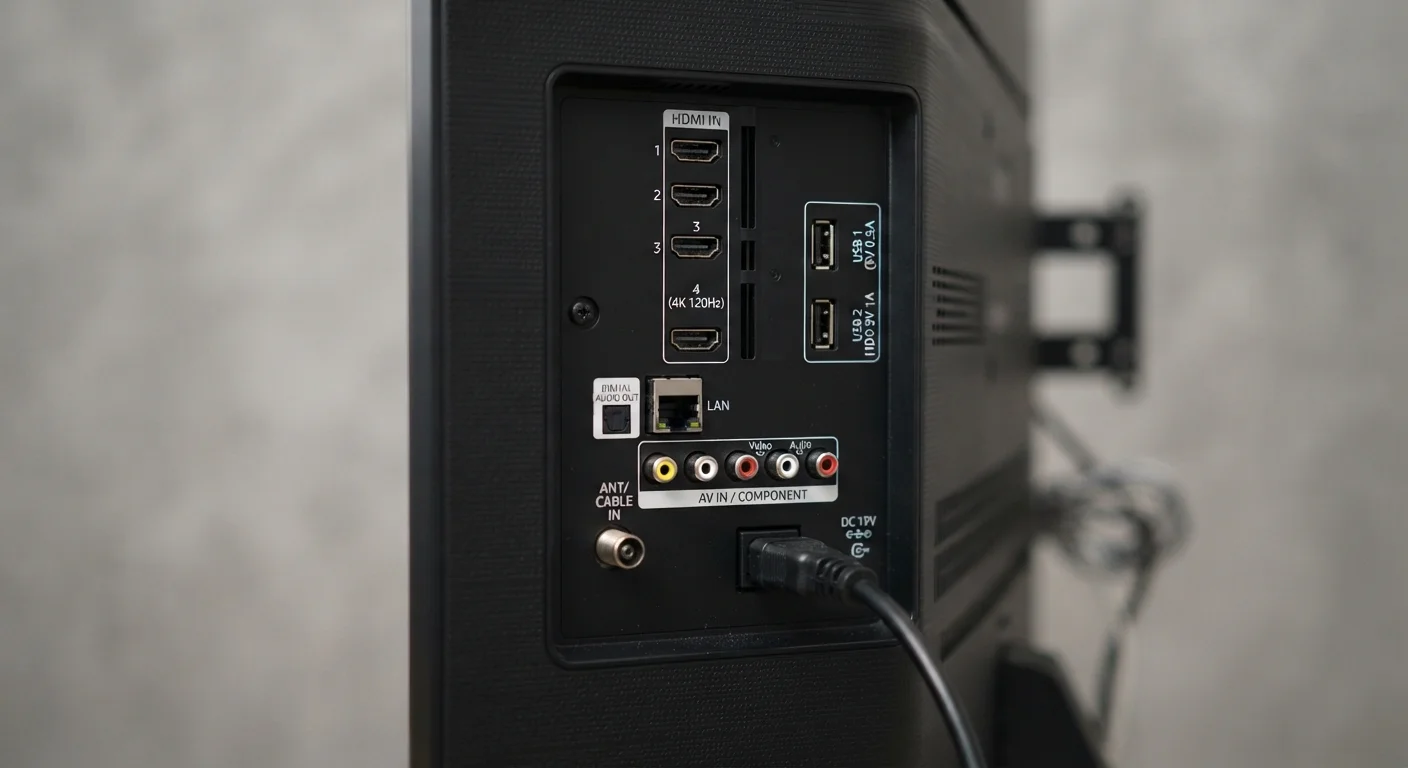
HDMI (High-Definition Multimedia Interface) carries both high-definition video and audio through a single cable. It is the dominant connection standard on modern TVs, and most households will use it for streaming sticks, game consoles, Blu-ray players, and laptop connections.
HDMI Versions
HDMI ports come in several versions — 1.4, 2.0, and 2.1 are the most common on current TVs. The version affects maximum resolution and refresh rate. HDMI 2.1 ports, found on newer sets, support 4K video at very high frame rates and features like Variable Refresh Rate (VRR), which reduces screen stuttering during gaming. If your TV's port is labeled HDMI 2.1, it can handle the most demanding signals; older versions handle standard HD and 4K at typical frame rates just fine for everyday viewing.
HDMI ARC and eARC
Look for a port labeled ARC (Audio Return Channel) or eARC (Enhanced ARC). These special HDMI ports send audio back out from your TV to a soundbar or AV receiver using the same cable carrying incoming video — eliminating a separate audio cable. eARC supports higher-quality audio formats, including lossless surround sound. Only one HDMI port on a TV typically carries ARC or eARC, so check the label carefully before plugging in your soundbar.
Always connect your soundbar to the HDMI port labeled ARC or eARC — not a standard HDMI port. Only the ARC-designated port can send audio back out to your soundbar with a single cable.
Using a non-ARC port means you'll need a separate audio cable, and you may lose the ability to control soundbar volume with your TV remote.
If you own a recent game console that supports high frame rates, verify your TV's HDMI 2.1 port location before connecting — manufacturers don't always place it in the most obvious slot.
On many TVs, only one or two of the four HDMI ports are version 2.1; the others may be 2.0, which caps output at 4K/60fps and won't unlock the console's full capability.
Audio Outputs: Optical, ARC, and Headphone Jacks
If your TV's built-in speakers aren't satisfying, these ports route sound to external audio equipment.
Optical Audio (TOSLINK)
The optical audio output — sometimes labeled Digital Audio Out (Optical) — uses a fiber-optic cable to send digital sound to a soundbar, stereo receiver, or home theater system. It supports surround sound formats like Dolby Digital but not the newer lossless audio formats supported by eARC. If your soundbar only has an optical input, this port is your connection point. Note that optical carries audio only — no video.
3.5mm Headphone Jack
Some TVs include a standard 3.5mm analog audio output. This lets you connect wired headphones or route audio to a basic speaker system. Sound quality is adequate but not audiophile-grade, and the port is becoming less common on newer sets as manufacturers assume users will use HDMI ARC or Bluetooth instead.
Pairing a Soundbar? Use HDMI ARC First
Before reaching for an optical cable, check whether both your TV and soundbar support HDMI ARC or eARC. A single HDMI cable between those ports handles audio in both directions, lets your TV remote control the soundbar volume, and — on eARC — supports higher-quality audio formats that optical cannot carry.
USB Ports on Your TV
Most modern TVs include one or more USB-A ports — the rectangular slot familiar from computers. Their uses are more limited than you might expect.
- Media playback: Plug in a USB flash drive containing photos, MP4 videos, or MP3 audio files, and your TV's built-in media player can display or play them directly.
- Powering streaming sticks: Devices like streaming sticks draw a small amount of power via USB. Plugging them into the TV's USB port keeps one fewer cable running to a wall outlet.
- Firmware updates: Some manufacturers allow TV software updates to be loaded from a USB drive, which is useful when the TV isn't connected to Wi-Fi.
USB Power Has Limits on TVs
TV USB ports typically supply 0.5A to 1A of current — enough for streaming sticks but not enough to meaningfully charge a modern smartphone. Relying on your TV's USB port to charge devices can result in slow or no charging, and in some cases the device may discharge even while connected. Use a dedicated wall charger for phones and tablets.
USB ports on TVs are not designed to fast-charge smartphones or power-hungry devices. The power output is typically much lower than a dedicated wall charger.
For a broader look at how your TV fits into a connected home, our home electronics connectivity guide explains how devices communicate across your household.
Legacy Inputs: Composite, Component, and Coaxial
Older equipment — VCRs, older game consoles, DVD players, and cable boxes — may use connections that predate HDMI. Many newer TVs are dropping these ports, but they still appear on mid-range and budget sets.
Composite Video
Composite uses three color-coded RCA connectors: yellow (video), white (left audio), and red (right audio). It carries standard-definition video only — roughly 480i resolution — which looks noticeably soft on large modern screens. It is the connection type on older game consoles and VCRs.
Component Video
Component uses five RCA connectors and separates the video signal into three parts (red, green, blue) plus two audio channels. It supports up to 1080i resolution — significantly sharper than composite — and was common on DVD players and early HD cable boxes before HDMI became standard.
Coaxial (RF) Input
The threaded round port labeled ANT IN or RF IN accepts a coaxial cable from an antenna or cable wall outlet. This is how over-the-air broadcast channels reach your TV. If you use a rooftop or indoor antenna to receive free local channels, this is the port you'll use. It does not carry high-definition signals from other devices.
Quick-Reference Port Guide
| Port Name | What It Carries | Typical Use |
|---|---|---|
| HDMI (standard) | HD/4K video + audio | Streaming sticks, game consoles, Blu-ray players |
| HDMI ARC / eARC | Video in + audio out | Soundbars, AV receivers (one cable) |
| Optical Audio Out | Digital audio only | Soundbars, stereo receivers |
| 3.5mm Audio Out | Analog audio only | Wired headphones, basic speakers |
| USB-A | Data + low power | Flash drives, powering streaming sticks |
| Composite (RCA) | SD video + stereo audio | VCRs, older game consoles |
| Component (RCA) | Up to 1080i video + stereo audio | DVD players, early HD cable boxes |
| Coaxial / RF In | Broadcast TV signal | Antenna, cable wall outlet |
Understanding these connections pairs naturally with knowing what picture quality those signals can deliver. Our TV resolution explainer covers what HD, 4K, and 8K mean in practical terms for your living room. And if you're curious how your TV, phone, and laptop all share the same home network, the full home electronics guide walks through wireless and wired connectivity end to end.
Port Labels Vary by Manufacturer
TV manufacturers use slightly different label conventions — you might see 'Digital Audio Out' instead of 'Optical,' or 'AV In' instead of 'Composite.' When in doubt, consult the diagram in your TV's printed quick-start guide or search the model number on the manufacturer's website for the full port map. Knowing your model number before buying cables or accessories prevents most compatibility problems.


