

Why Home Electronics Feel Complicated (And Why They Don't Have to Be)
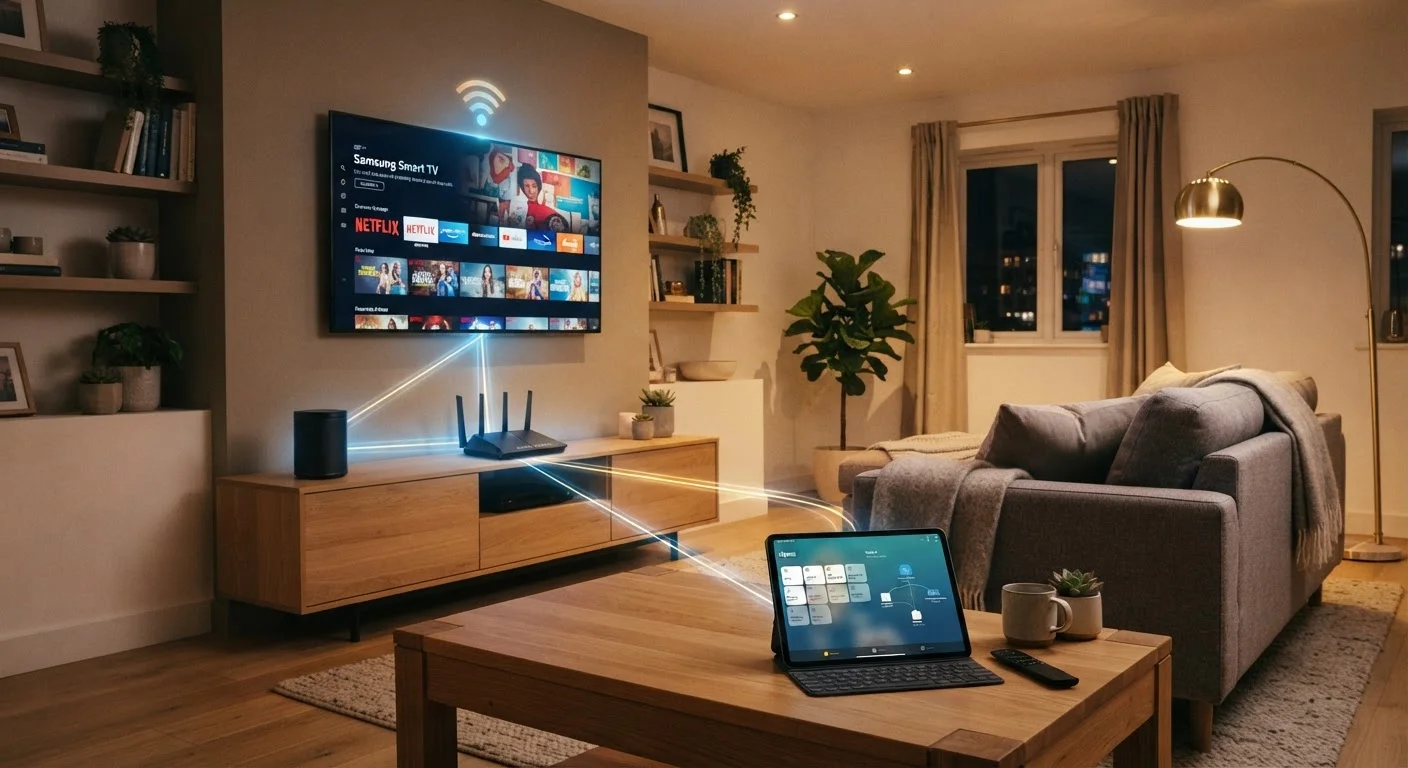
Walk into any American home today and you'll find a quiet tangle of devices: a TV pulling a signal from a streaming stick, a smart speaker responding to voice commands, a thermostat reporting temperature data to an app. Each of these devices communicates — with each other, with the internet, or with both — using a set of rules called protocols. The frustration most households feel isn't a lack of intelligence; it's a lack of context.
This guide provides that context. Rather than overwhelming you with specs, it explains the core ideas that govern how home electronics connect and cooperate, so you can make confident decisions and solve common problems without calling for help. For readers who are completely new to the topic, our plain-language smart home starting point covers the foundational basics before diving into connectivity.
17+
Connected devices in average US household
According to Deloitte's Digital Media Trends survey, the average American household owns more than 17 internet-connected devices.
2.4 GHz & 5 GHz
Wi-Fi frequency bands in most modern routers
Most routers sold today are dual-band, broadcasting on both frequencies to serve different device needs simultaneously.
~30 ft
Typical Bluetooth effective range indoors
Bluetooth range varies by version and environment; walls, interference, and device class all affect real-world performance.
Wired Connections: HDMI, USB, and Optical Audio Explained
Despite the wireless revolution, physical cables remain the most reliable way to move data between devices. Understanding what each port does eliminates a lot of guesswork.
HDMI (High-Definition Multimedia Interface)
HDMI carries both video and audio through a single cable. It's the standard connector between TVs, soundbars, gaming consoles, and streaming devices. Newer HDMI versions (2.0 and 2.1) support higher resolutions and refresh rates, but the same cable style is used across versions — so always check the port specifications on your devices, not just the cable label. See our complete guide to TV inputs and outputs for a deeper breakdown of every port on a modern television.
USB (Universal Serial Bus)
USB ports on TVs and soundbars typically deliver low-power charging or read media from a flash drive. USB-C, the oval-shaped connector now common on laptops, tablets, and some TVs, can carry power, video, and data simultaneously over a single cable — a significant upgrade in versatility.
Optical Audio (TOSLINK)
This square-tipped cable carries audio only, using pulses of light rather than electrical signals. It's common on older soundbars and AV receivers. While it doesn't support the most advanced audio formats (like Dolby Atmos), it's still a dependable choice for basic surround sound setups.
Label Your Cables Before You Plug Them In
A strip of masking tape and a marker on each cable end saves significant time when troubleshooting later. Once a TV stand is full, identifying which HDMI goes where becomes genuinely difficult. A 30-second labeling habit prevents a 30-minute untangling session.
Wireless Technologies: Wi-Fi, Bluetooth, Zigbee, and Z-Wave
Wireless connectivity in the home isn't a single technology — it's a family of protocols, each suited to different tasks.
Wi-Fi
Wi-Fi connects devices to your home internet router using radio waves. The two most common frequency bands are 2.4 GHz (longer range, slower speeds, better at penetrating walls) and 5 GHz (shorter range, faster speeds, less interference). Most modern routers broadcast both simultaneously. Streaming video, smart TVs, and phones typically favor Wi-Fi because of its bandwidth.
Bluetooth
Bluetooth is designed for short-range, direct device-to-device communication — no router needed. Wireless headphones, speakers, keyboards, and fitness trackers all use it. Bluetooth Low Energy (BLE) is a variant that consumes very little power, making it ideal for sensors and wearables.
Zigbee and Z-Wave
These are low-power mesh protocols used almost exclusively by smart home devices — sensors, smart bulbs, door locks, and thermostats. Unlike Wi-Fi, Zigbee and Z-Wave devices form a mesh network: each device can relay signals from others, extending coverage without adding routers. They typically require a central hub to connect to your home network and apps. Our comparison of Wi-Fi, Zigbee, and Z-Wave explains the trade-offs in practical terms.
When setting up smart home sensors and bulbs, connect them to your 2.4 GHz Wi-Fi network rather than 5 GHz — these low-bandwidth devices connect more reliably at that frequency and won't bog down your faster band.
Smart home devices transmit small packets of data infrequently; the 2.4 GHz band's wider range and wall-penetration characteristics suit them better than the speed-optimized but shorter-range 5 GHz band.
Before purchasing any smart home device, look for the Matter certification logo on the packaging — it signals the device is designed to work across multiple ecosystems, giving you more flexibility as your setup grows.
The Matter standard, backed by major technology alliances, was specifically developed to reduce proprietary lock-in and improve cross-platform compatibility in smart home devices.
How Your Home Network Ties Everything Together
Most connected devices — whether a smart speaker, a streaming stick, or a robot vacuum — ultimately rely on your home's internet connection to function fully. That connection flows through a modem (which brings internet service into the home) and a router (which distributes that connection wirelessly and through ethernet ports to all your devices).
The router is the hub of nearly every modern home electronics setup. When a device has trouble connecting, it's often a router issue rather than a problem with the device itself. Factors like router placement, the number of devices connected simultaneously, and interference from neighboring networks all affect performance.
Mesh Wi-Fi systems address coverage gaps by using multiple access points spread around the home, creating a seamless network. This is particularly useful in larger homes or those with thick walls. Our guide to home network basics walks through routers, modems, and mesh systems in plain language.
Your Router's Age Matters
Routers older than five to six years may not support current Wi-Fi standards (Wi-Fi 5 or Wi-Fi 6), which can limit the performance of newer devices. If you've added many smart devices and notice frequent dropouts or slow speeds, the router — not the devices — may be the bottleneck worth investigating first.
Making Devices Work Together: Hubs, Ecosystems, and Compatibility
One of the most common points of confusion in home electronics is ecosystem compatibility — the idea that some devices are designed to work well together while others are not.
Major technology platforms (such as Google Home, Amazon Alexa, and Apple HomeKit) function as ecosystems. Devices certified for a given ecosystem can be controlled through that platform's app or voice assistant. A newer open standard called Matter is designed to bridge ecosystems so that a single device can work with multiple platforms — reducing the lock-in that has historically frustrated consumers.
For devices that use Zigbee or Z-Wave, a smart home hub acts as a translator, converting those signals into commands your router and apps can understand. Without the appropriate hub, these devices simply won't appear on your phone.
Before adding any device to your home, checking its protocol and ecosystem compatibility will save considerable frustration. Our article on what to consider before installing smart home devices covers compatibility alongside important privacy considerations.
“Interoperability has always been the hardest problem in consumer electronics. Standards help, but they only work when manufacturers commit to them consistently.”
— Stacey Higginbotham, Technology journalist and smart home policy fellow
Practical Steps for a More Connected, Less Frustrating Home
With the underlying concepts in place, a few practical habits make home electronics much easier to manage:
- Map your network: Know which devices connect via Wi-Fi, which use Bluetooth, and which require a hub. A simple list or diagram prevents compatibility surprises.
- Position your router centrally: Placing it in a central, elevated location — away from microwaves and thick concrete walls — improves coverage for all wireless devices.
- Keep firmware updated: Routers, smart speakers, and hubs receive security and performance updates. Enable automatic updates where available.
- Check power draw: Many home electronics consume electricity even in standby mode. Our article on standby energy consumption in home electronics helps identify the biggest phantom power drains.
- Use the 2.4 GHz band for smart devices: Low-bandwidth smart home gadgets (bulbs, sensors) often connect more reliably on 2.4 GHz, leaving 5 GHz free for bandwidth-intensive devices like TVs and laptops.
Understanding how your devices connect is the first step toward a home setup that actually works the way you expect. For readers curious about how these same principles apply to smartphones, our plain-language tour of smartphone hardware covers connectivity from the inside out.
Home Network Basics Every Household Should Understand
A plain-language breakdown of routers, modems, bandwidth, and mesh systems — the foundation every connected home depends on.
Wi-Fi vs. Zigbee vs. Z-Wave: Wireless Protocols Explained
Understand the key differences between the wireless protocols powering smart home devices and how to choose the right one for your setup.
Energy Use in Home Electronics: What Your Devices Actually Cost to Run
Learn how to read wattage specs and estimate the monthly running cost of TVs, routers, smart speakers, and other always-on devices.


