

What App Permissions Actually Are
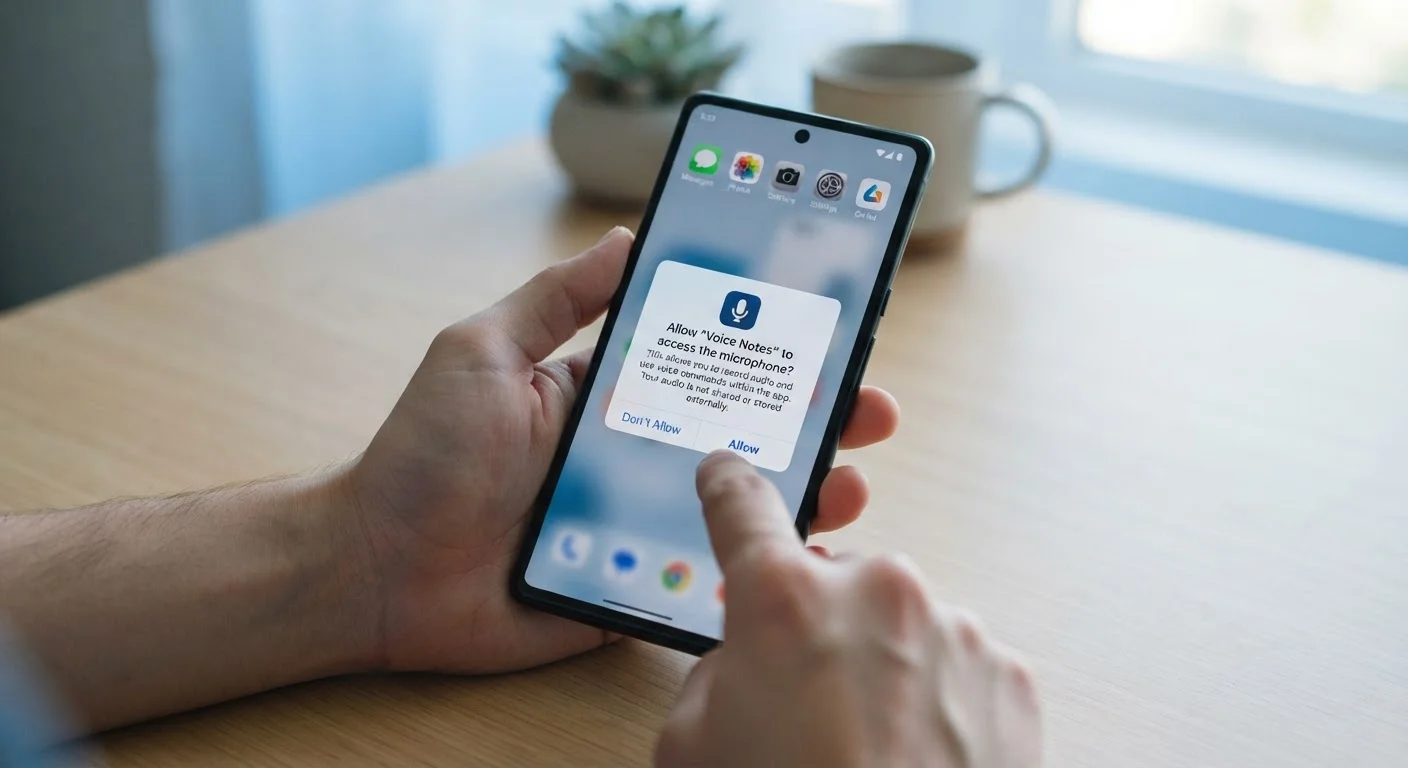
Every app on your phone operates in a controlled environment. It can't access your camera, microphone, location, or contacts unless you explicitly say it can — that's the purpose of app permissions. When an app requests a permission, your phone displays a dialog asking you to approve or decline.
Permissions are grouped into categories based on the type of data or hardware involved. Common ones include:
- Location — your current or approximate geographic position
- Camera — the ability to capture photos or video
- Microphone — listening via the phone's built-in mic
- Contacts — names, numbers, and emails stored on your device
- Storage — reading or writing files on your phone
- Notifications — sending alerts to your lock screen or notification tray
Understanding what each category means is the first step to making informed choices. For a broader look at how Android and iOS handle these differences, see our Android vs. iOS comparison.
Use 'While Using the App' When Available
Both Android and iOS offer an option to grant location — and sometimes other permissions — only while the app is open. This limits background data collection without fully disabling the feature. It's a practical middle ground for apps you use regularly but don't want running in the background.
Why Some Permissions Deserve a Second Look
Not all permissions carry the same weight. Letting a weather app know your general location makes obvious sense. But some requests are worth pausing on before tapping Agree.
Location is one of the most sensitive permissions. An app set to access your location always — even when you're not using it — can build a detailed picture of your daily routines. Choosing only while using is usually sufficient for most legitimate apps.
Microphone and Camera access are similarly significant. These are appropriate for apps that genuinely use them — video calling, voice memos, photo editing — but unnecessary for apps like calculators, to-do lists, or simple games.
Never Grant Permissions You Don't Understand
If an app requests access to something that doesn't match its function — like a flashlight app asking for your contacts — decline and investigate before proceeding. Unusual permission requests can be a sign that an app is poorly designed or potentially untrustworthy. When in doubt, check the app's listing in your phone's official app store for transparency disclosures.
Privacy researchers and consumer advocates have long noted that some apps request far more access than their core functionality requires. Reading an app's permission list in the official app store before downloading can help you spot these patterns in advance. Our guide on when to be cautious with app permissions goes deeper on how to evaluate specific requests.
If you're also curious about how smart home devices handle always-on listening, our article on smart speakers and privacy explains what those devices are actually designed to do.
How to Review and Adjust Permissions
Managing permissions is straightforward once you know where to look. Follow the steps below to audit what apps currently have access to on your device.
What you will need
Open your phone's Settings app
On both Android and iOS, the Settings app is your control center for permissions. Look for the gear icon on your home screen or app drawer. Once open, you'll navigate to a section dedicated to apps and privacy.
Find the Privacy or App Permissions section
On Android, go to Settings > Privacy > Permission Manager. This shows permissions grouped by type — such as Location, Camera, and Microphone — so you can see which apps have access to each.
On iOS, go to Settings > Privacy & Security, where you'll find the same category-based view.
Review which apps have access to sensitive features
Tap into categories like Location, Microphone, Camera, and Contacts. For each category, your phone lists every app that currently holds that permission — along with whether access is set to always-on, only while using the app, or denied.
Ask yourself: does it make sense for this app to have this access? A ride-sharing app needing location is reasonable. A recipe app with microphone access is harder to justify.
Adjust or revoke permissions you're not comfortable with
Tap any app in the list to change its access level. You'll typically see options like Allow all the time, Allow only while using the app, Ask every time, or Don't allow. Select the option that fits your comfort level.
Changes take effect immediately — no restart required.
Check new apps as you install them
Going forward, pay attention when a new app first launches and presents a permission request. Read the prompt carefully — it usually explains why the access is needed. You don't have to grant access immediately; you can tap Don't Allow and revisit the permission later in Settings if the app truly needs it.
Revoking Permissions May Break App Features
Removing a permission doesn't uninstall the app, but it may prevent certain features from working. For example, denying location access to a maps app will stop turn-by-turn navigation. Weigh the privacy trade-off against how much you rely on that specific feature.
Staying on top of permissions is part of broader phone security hygiene. For more habits that protect your personal data, see our guide on keeping your phone secure.


