

What Is a Personal Computer, Really?
A personal computer (PC) is a general-purpose computing device designed for individual use. Unlike specialized machines built for one narrow task, a PC can run thousands of different programs — from word processors and web browsers to photo editors and video streaming apps. That flexibility is what makes it such a foundational tool for work, school, creative projects, and everyday life.
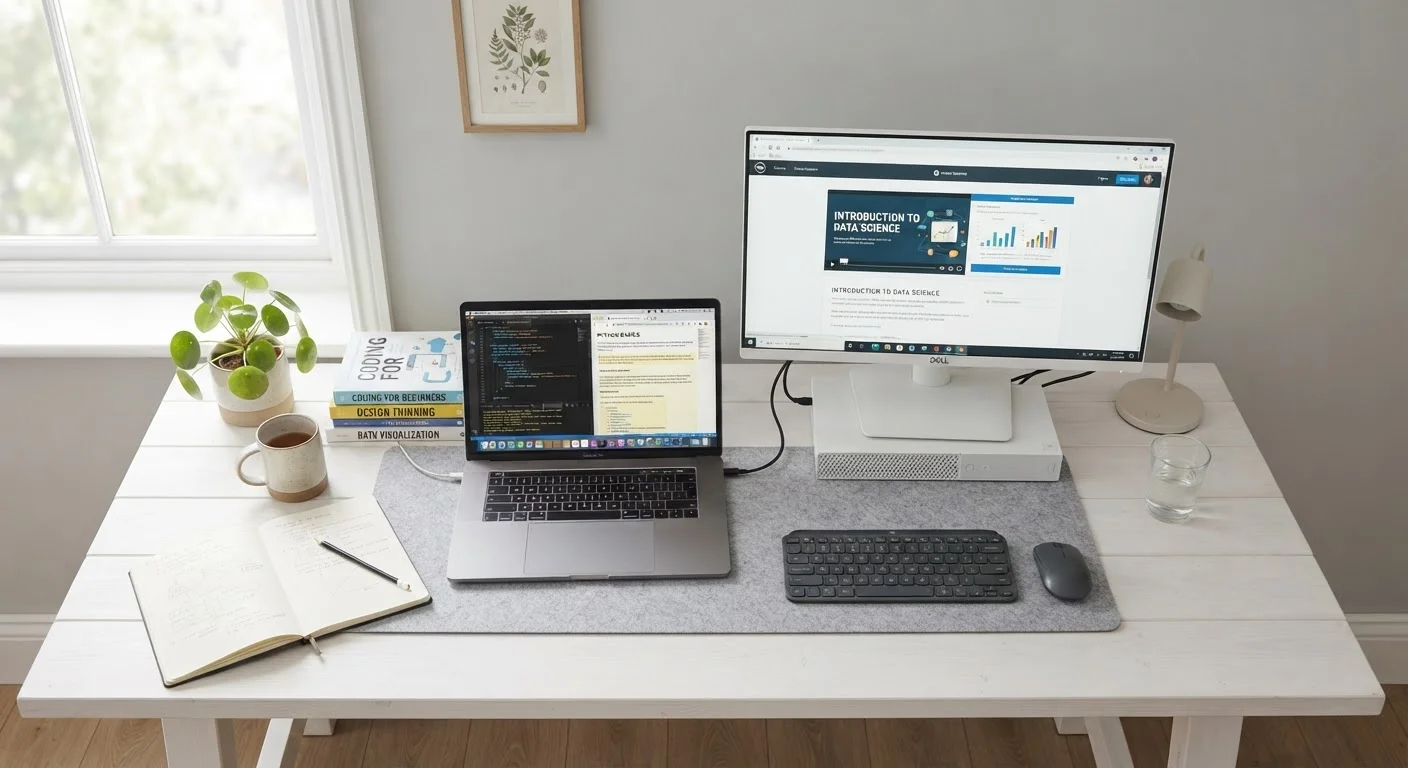
PCs come in several physical forms: the traditional desktop, the portable laptop, and increasingly compact variants like mini PCs or all-in-one systems where the computer is built into the monitor. Despite their different shapes, all of these share the same underlying architecture. Understanding that architecture — even at a basic level — puts you in a much stronger position whether you're shopping for your first machine or simply trying to get more out of the one you already own.
For a deeper dive into terminology you'll encounter along the way, the Plain-Language Glossary of Computer and Laptop Terms is a useful companion reference.
CPU
The Central Processing Unit is the main chip that carries out instructions from programs. It's often described as the 'brain' of the computer.
RAM
Random Access Memory is temporary, fast-access storage your computer uses while running programs. It's cleared when you turn the computer off.
Operating System
The core software that manages your computer's hardware and lets other programs run. Windows and macOS are common examples.
SSD
A Solid-State Drive is a type of storage that holds your files and programs permanently. It's faster and more durable than older hard disk drives.
GPU
The Graphics Processing Unit handles visual output — everything you see on the screen. More demanding visuals require a more capable GPU.
Motherboard
The main circuit board inside a computer that connects all components and allows them to communicate with each other.
Hardware: The Physical Parts That Make It Work
Hardware refers to every physical component inside or attached to your computer. You can touch it, replace it, and upgrade it. Here are the parts that matter most for everyday understanding:
- CPU (Central Processing Unit): Often called the processor, this is the brain of the computer. It executes instructions from programs and handles calculations. Speed and the number of processing cores both influence how quickly a CPU handles tasks.
- RAM (Random Access Memory): Think of RAM as your desk — it's where active work happens. The more RAM you have, the more programs you can run simultaneously without slowdown. When you restart your computer, RAM is cleared.
- Storage (HDD or SSD): This is where your files, programs, and operating system live permanently. SSDs are faster and more durable than older HDDs, which use spinning magnetic platters.
- Motherboard: The main circuit board that connects all components together and allows them to communicate.
- GPU (Graphics Processing Unit): Handles visual output. Everyday tasks use modest graphics needs; video editing or gaming may require a more capable dedicated GPU.
- Ports and connectivity: Physical openings like USB, HDMI, and audio jacks let you connect external devices like monitors, keyboards, and headphones.
Focus on These Three Specs First
When evaluating any PC — whether you're buying new or understanding what you already own — the CPU, RAM, and storage type (SSD vs. HDD) tell you the most about day-to-day performance. Everything else matters, but these three determine how fast, smooth, and responsive your everyday experience will feel.
Software: The Instructions That Run the Machine
Software is the invisible layer — the programs and instructions that tell hardware what to do. There are two broad categories every PC user should know:
- Operating System (OS)
- The OS is the foundational software layer that manages hardware resources and provides the environment for everything else. Windows and macOS are the most common in the US consumer market; Linux distributions serve more technical users. The OS you use shapes your interface, file management, and what applications run natively.
- Applications (Apps)
- Apps are programs that run on top of the OS to help you do specific things — write documents, browse the web, edit photos, or video call a friend. Some come pre-installed; others are downloaded from software stores or developer websites.
Keeping both your OS and applications updated is one of the simplest ways to maintain security and performance. Updates often patch vulnerabilities that could otherwise be exploited.
Don't Skip System Updates
Delaying OS and application updates is one of the most common ways computers become vulnerable to security threats. Updates frequently contain critical patches for discovered weaknesses. Enable automatic updates where possible, or build a habit of checking for them regularly — especially within the first week of owning a new machine.
How Hardware and Software Work Together
Hardware and software are entirely interdependent. When you open a web browser, here's a simplified version of what happens: you click an icon (input), the OS tells the CPU to load the browser (processing), the browser's code is pulled from storage into RAM (memory), and the result displays on your screen via the GPU (output). This cycle — input, processing, output — repeats constantly, thousands of times per second.
This is why hardware specifications and software requirements are linked. A very old CPU or minimal RAM may struggle to run newer, more demanding software. Conversely, even the fastest hardware can only do what its software instructs it to do. Understanding this relationship helps you read spec sheets more meaningfully rather than treating numbers as abstract marketing figures.
Explore the broader world of home technology in the Home Tech Basics hub, which covers connected devices, smart home hardware, and more consumer electronics fundamentals.
Practical Next Steps for New PC Owners
With a foundation in place, you're ready to move from concept to action. Here's how to build on what you've learned:
- Evaluate before you buy. If you haven't yet committed to a machine, use our pre-purchase checklist to assess specs, compatibility, and practical fit.
- Set up carefully from the start. First-time setup decisions — accounts, security settings, backups — have long-term consequences. Our guide to setting up a new computer walks you through each step.
- Keep a glossary handy. Technical vocabulary builds up fast. Bookmark the Plain-Language Glossary for quick lookups when you encounter unfamiliar terms.
- Start simple. You don't need to master everything at once. Focus on the handful of tasks you need most — email, documents, video calls — and expand your knowledge from there.
Owning a PC is a skill that compounds over time. Each concept you understand makes the next one easier to grasp. This guide is just the beginning of that journey.
Plain-Language Glossary of Computer and Laptop Terms
A comprehensive reference that defines common PC and laptop terminology in plain English. Useful when you encounter unfamiliar specs or jargon while shopping or troubleshooting.
Things to Verify Before Committing to a New Computer
A practical checklist covering specs, compatibility, and real-world fit — designed to help you evaluate a PC confidently before making a purchase decision.
Setting Up a New Computer the Right Way
Step-by-step guidance covering first power-on through security configuration and backups, so your new machine starts on solid footing.


