

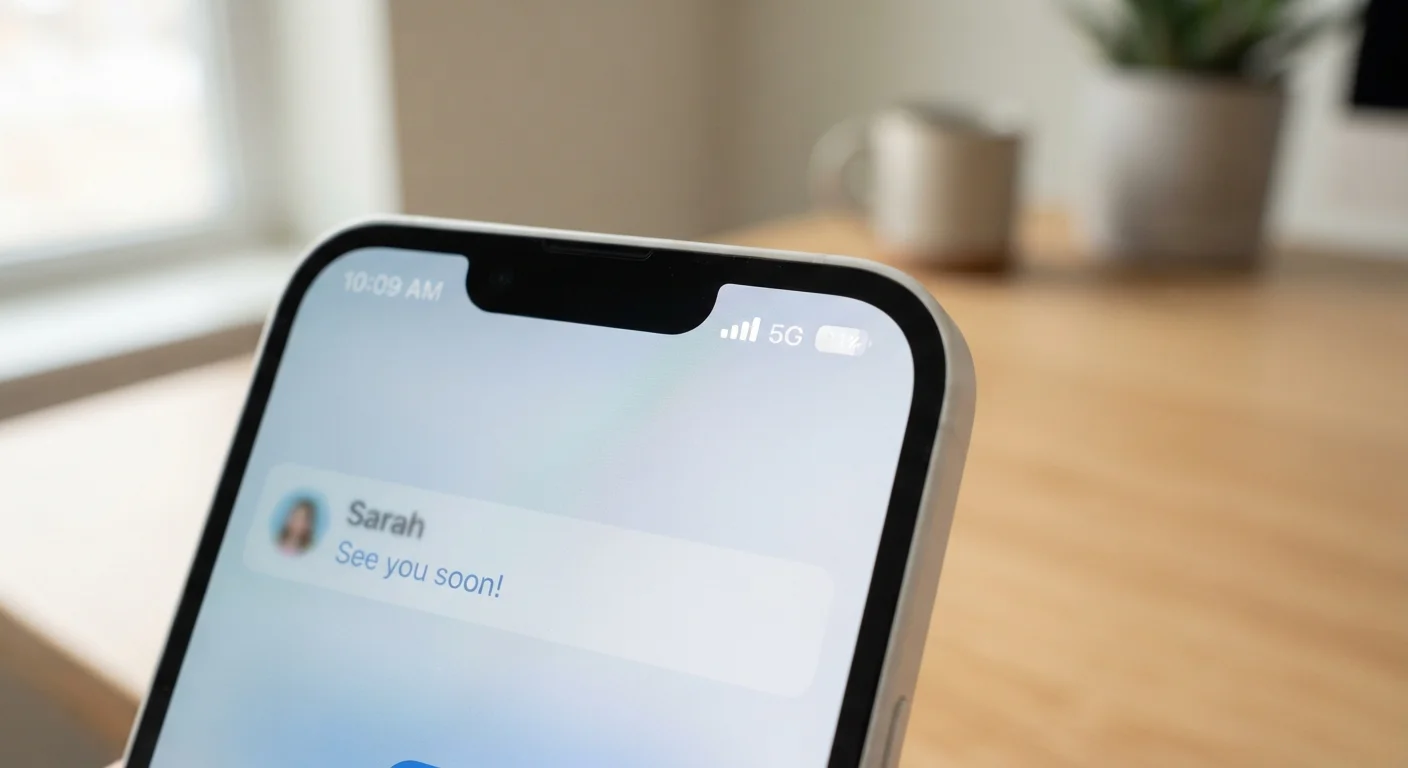
Two Radios, One Phone
Modern smartphones contain at least two separate wireless radios: one that communicates with nearby Wi-Fi routers, and one that connects to your mobile carrier's cell towers. These operate independently, which means your phone can technically be in contact with both networks at the same time — even though it's typically only using one to send and receive data at any given moment.
Think of it like having two roads to the same destination. Your phone's software is constantly checking which road has lighter traffic and better pavement, and it routes your data accordingly. Understanding that this decision-making happens automatically — and invisibly — is the first step to making sense of your connection behavior.
For a broader overview of how these connection types differ from each other, see this plain-English breakdown of mobile data, Wi-Fi, and hotspots.
How Your Phone Decides Which Network to Use
Most people assume their phone will always prefer Wi-Fi when it's available. In practice, the decision is more nuanced. Your phone doesn't just ask "is Wi-Fi on?" — it asks "is this Wi-Fi network good enough?"
Both Android and iOS use quality-assessment tools that measure things like signal strength, latency (how quickly the network responds), and whether the Wi-Fi network actually has a working path to the internet. A router that's on but not delivering a usable connection — a common situation in hotels, airports, or even at home when the modem has a problem — may be skipped in favor of your cellular signal.
~70%
Share of US smartphone data consumed over Wi-Fi
Industry estimates consistently suggest the majority of mobile data traffic is offloaded to Wi-Fi networks, highlighting how central home and public Wi-Fi is to everyday phone use.
–65 dBm
Approximate Wi-Fi signal threshold for reliable performance
Wireless networking guidelines generally suggest that signal strength below around –70 dBm begins to affect reliability; many phones use similar thresholds when deciding whether to switch networks.
This behavior goes by different names depending on your device. Apple calls it Wi-Fi Assist; many Android phones label it Adaptive Wi-Fi or Smart Network Switch. The underlying principle is the same: your phone quietly routes your traffic to the better-performing option without asking for your permission each time.
When Switching Happens — and Why It Can Confuse You
The switching behavior tends to surface in specific, frustrating scenarios. You might notice your phone has burned through mobile data during a day spent mostly at home, or realize an app loaded slowly despite being on your home network. Both situations often trace back to the same cause: your Wi-Fi signal was present but poor, and your phone made a judgment call.
Wi-Fi dead zones are a common culprit. If you're in a part of your home far from the router, the signal your phone receives may be technically active but too weak to deliver reliable speeds. Your phone may then prefer cellular — especially if you have a strong LTE or 5G signal indoors. A mesh Wi-Fi system can help eliminate these gaps by distributing the signal more evenly throughout your home.
Network congestion is another factor. Public Wi-Fi networks — at coffee shops, airports, or stadiums — may have dozens or hundreds of users sharing the same bandwidth. Even if your signal bars look full, the actual throughput can be slower than your cellular connection, prompting your phone to switch.
Taking Control of the Behavior
Once you know why your phone switches, you can decide whether the default behavior suits you or whether you'd rather take manual control.
To reduce unintended mobile data use: Disable Wi-Fi Assist or Adaptive Wi-Fi in your settings. This locks your phone to whatever Wi-Fi network you're connected to, even if it's performing poorly. This is useful if you're on a metered data plan and want predictable usage.
To improve your Wi-Fi coverage: Rather than fighting the switching behavior, eliminate the weak signal that triggers it. Repositioning your router, upgrading to a newer model, or adding a Wi-Fi extender can improve coverage in problem areas. For larger homes, a mesh system may be worth exploring.
Check Your Data Usage Regularly
Both iPhone and Android let you see a breakdown of which apps have used mobile data in the current billing cycle. Reviewing this monthly — found under Settings > Cellular on iPhone or Settings > Network & Internet on Android — can quickly reveal if unexpected background switching has been eating into your plan.
It's also worth knowing that Wi-Fi calling — a feature that routes phone calls over your internet connection rather than cell towers — has its own logic for switching. That's covered in more detail in our guide to how Wi-Fi calling works and when your phone uses it.
If your phone still feels sluggish regardless of which network it's on, the connection may not be the primary issue. See why phones slow down over time for other factors that affect device performance.


