

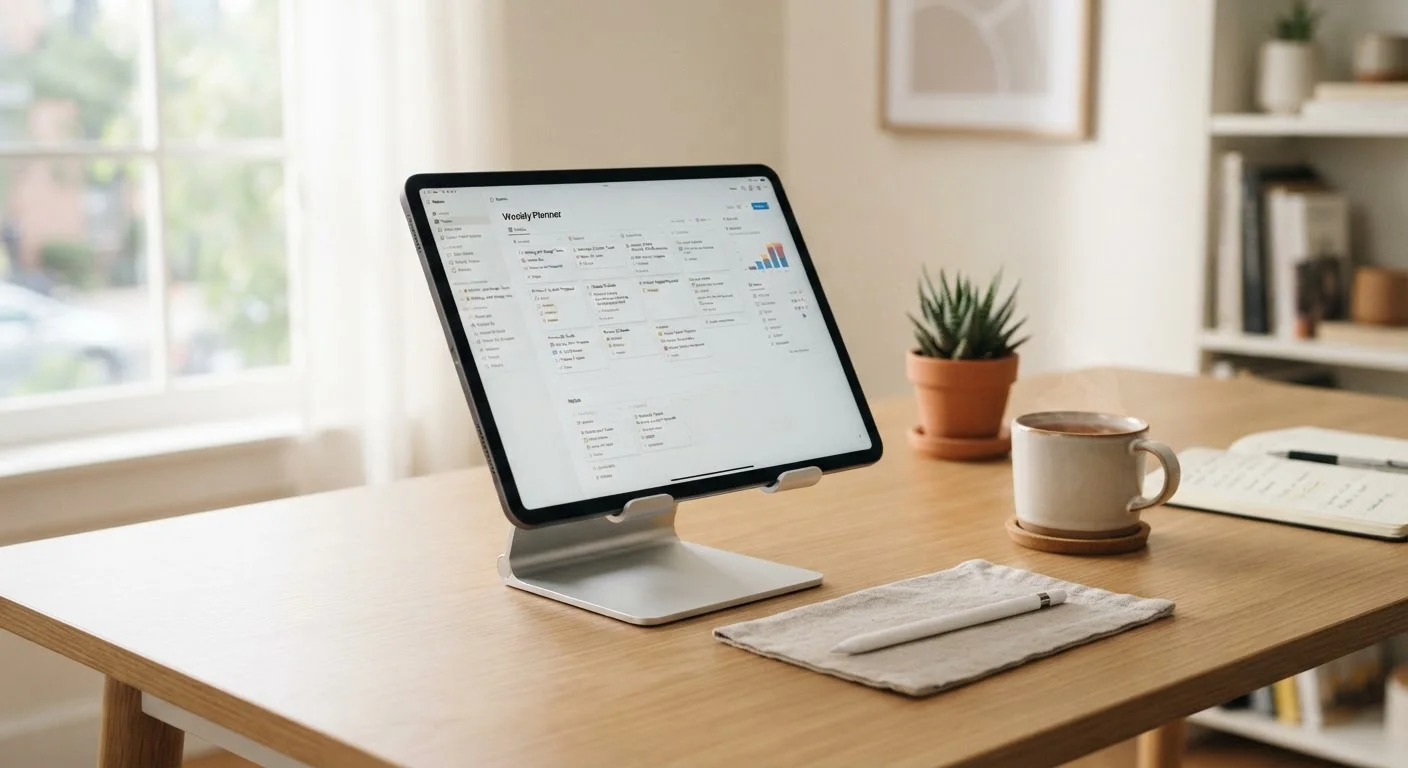
What 'Primary Device' Actually Means Here
Using a tablet as your primary device means it handles the bulk of your daily computing — email, web browsing, video calls, note-taking, light document editing, and entertainment. It does not necessarily mean it replaces every tool you own, but it does mean it's the device you reach for first, most of the time.
The question of whether that's practical depends less on the tablet itself and more on how you work and what software you need. Thinking through your actual daily workflow before committing to a tablet-first setup will save you a lot of frustration.
The Real Advantages of Going Tablet-First
Tablets offer a combination of portability, battery endurance, and simplicity that most laptops can't quite match. Here's what genuinely works in their favor.
Exceptional battery life compared to most laptops
Many tablets deliver 10 to 12 hours of real-world use on a single charge, meaningfully outperforming the majority of laptops at similar price points. This makes all-day untethered use a realistic expectation rather than an optimistic marketing claim.
Lighter and easier to carry daily
Most tablets weigh under two pounds without a keyboard case, which is noticeably less than even compact laptops. For commuters or anyone who carries a bag all day, this difference matters physically.
Intuitive touchscreen reduces friction for many tasks
Annotating documents, scrolling through content, and navigating apps all feel natural with a touchscreen in a way that a trackpad doesn't replicate. A stylus expands this further for note-taking and sketching.
Simpler operating systems require less maintenance
Tablet operating systems generally update quietly in the background and are less vulnerable to the software clutter and configuration issues that accumulate on full desktop systems over time.
Versatile form factor for both work and entertainment
A tablet with a keyboard case functions like a compact laptop for productivity, then converts instantly to a media viewer or e-reader. Few single devices handle this range of use modes as smoothly.
10–12 hrs
Typical tablet battery life per charge
Manufacturer-stated battery estimates for mid-range and premium tablets commonly fall in this range under mixed usage conditions.
~1–2 lbs
Average weight of a tablet without accessories
Without a keyboard case, most mainstream tablets weigh considerably less than even the lightest consumer laptops, which typically start around 2.5 pounds.
Beyond raw battery life, tablets tend to be lighter than even the slimmest laptops, making them genuinely easier to carry through a commute or use on a couch. The touchscreen interface also reduces friction for tasks like annotating PDFs, sketching ideas, or navigating apps — interactions that feel awkward with a trackpad.
The Genuine Drawbacks You Should Know
The limitations of tablets as primary devices are real and worth taking seriously before you sell your laptop.
Multitasking remains more limited than on laptops
Running multiple apps side by side on a tablet is possible but constrained — typically limited to two apps at once, with less flexibility than a windowed desktop environment. Power users who work across several applications simultaneously will notice the gap.
Many professional software tools are unavailable
Full versions of specialized software — advanced video editors, CAD applications, certain accounting platforms — either don't exist on tablet operating systems or offer significantly reduced functionality compared to their desktop counterparts.
Typing on a physical keyboard is a workaround, not native
Keyboard accessories have improved considerably, but attaching one adds cost, weight, and a layer of complexity. The experience still doesn't match a laptop keyboard that was designed as part of the device from the start.
File management is clunky compared to desktop systems
Organizing, moving, and accessing files across apps and external drives is less intuitive on tablet operating systems. Users coming from Windows or macOS often find this the most frustrating daily limitation.
Peripheral connectivity is restricted
Most tablets have one or two ports, which limits simultaneous connection of external monitors, storage, and input devices. Adapters and hubs solve some of this but add bulk and potential compatibility issues.
File management is a particularly common pain point. Moving files between apps, connecting external storage, or working with complex folder structures tends to be clumsier on tablet operating systems than on a traditional desktop environment. If your work involves juggling large numbers of documents or media files, this friction adds up quickly.
Software Compatibility Varies by Platform
The specific apps available to you depend on whether your tablet runs iPadOS, Android, or a Windows-based system. Some tablet platforms have more robust productivity app ecosystems than others. Before committing to a tablet as your primary device, it's worth auditing the apps you rely on daily and verifying that functional versions exist for the platform you're considering.
How Tablets Compare to the Alternatives
Compared to laptops, tablets trade processing power and software flexibility for lighter weight and longer battery life. Laptops carry their own set of tradeoffs, particularly around bulk and battery, but they remain more capable for users who need desktop-class software or advanced multitasking.
Chromebooks sit in an interesting middle ground — Chromebooks offer speed and simplicity in a traditional clamshell form factor, making them a strong alternative if you want a more conventional typing experience without Windows or macOS complexity.
If you're torn between a tablet and a smartphone as your mobile-first device, the decision usually comes down to screen size and whether you make frequent phone calls. Weighing smartphone versus tablet involves thinking through portability, calling capability, and how much screen real estate your tasks actually require.


